Quarto & Plotting
EMSE 6035: Marketing Analytics for Design Decisions
John Paul Helveston
September 23, 2026

Week 5: Quarto & Plotting

1. Intro to Quarto

2. Intro to ggplot2

3. Project attributes & levels

4. Conjoint survey components

Week 5: Quarto & Plotting

1. Intro to Quarto

2. Intro to ggplot2

3. Project attributes & levels

4. Conjoint survey components

“Literate programming”

Treat programs as a “literature” understandable to human beings
Quick demo

1. Open quarto_demo.qmd

2. Click “Preview”

Anatomy of a .qmd file

Header

Markdown text

R code

Define overall document options in header

Basic html page

---
title: Your title
author: Author name
format: html
---

Add table of contents, change theme

---
title: Your title
author: Author name
toc: true
format:
  html:
    theme: united
---

More on themes at https://quarto.org/docs/output-formats/html-themes.html

Render to multiple outputs

PDF uses LaTeX
---
title: Your title
author: Author name
format: pdf
---

If you don’t have LaTeX on your computer, install tinytex in R:

tinytex::install_tinytex()
Microsoft Word
---
title: Your title
author: Author name
format: docx
---

Anatomy of a .qmd file

Header

Markdown text

R code

Right now, bookmark this! 👇


(When you have 10 minutes, do this! 👇)

Headers

# HEADER 1

## HEADER 2

### HEADER 3

#### HEADER 4

##### HEADER 5

###### HEADER 6
HEADER 1
HEADER 2
HEADER 3
HEADER 4
HEADER 5
HEADER 6

Basic Text Formatting

Type this…
  • normal text
  • _italic text_
  • *italic text*
  • **bold text**
  • ***bold italic text***
  • ~~strikethrough~~
  • `code text`
..to get this
  • normal text
  • italic text
  • italic text
  • bold text
  • bold italic text
  • strikethrough
  • code text

Lists

Bullet list:

- first item
- second item
- third item
  • first item
  • second item
  • third item

Numbered list:

1. first item
2. second item
3. third item
  1. first item
  2. second item
  3. third item

Links

Simple url link to another site:

[Download R](http://www.r-project.org/)

Download R

Anatomy of a .qmd file

Header (think of this as the “settings”)

Markdown text

R code

R Code

Inline code
`r insert code here`
Code chunks
```{r}
insert code here
insert more code here
```

Inline R code

The sum of 3 and 4 is `r 3 + 4`


Produces this:

The sum of 3 and 4 is 7

R Code chunks

This code chunk…

```{r}
library(palmerpenguins)

glimpse(penguins)
```

…will produce this when rendered:

library(palmerpenguins)

glimpse(penguins)
#> Rows: 4
#> Columns: 8
#> $ species           <fct> Adelie, Adelie, Adelie, Adelie
#> $ island            <fct> Torgersen, Torgersen, Torgersen, Torgersen
#> $ bill_length_mm    <dbl> 39.1, 39.5, 40.3, NA
#> $ bill_depth_mm     <dbl> 18.7, 17.4, 18.0, NA
#> $ flipper_length_mm <int> 181, 186, 195, NA
#> $ body_mass_g       <int> 3750, 3800, 3250, NA
#> $ sex               <fct> male, female, female, NA
#> $ year              <int> 2007, 2007, 2007, 2007

Chunk options

Control what chunks output using options

All options here
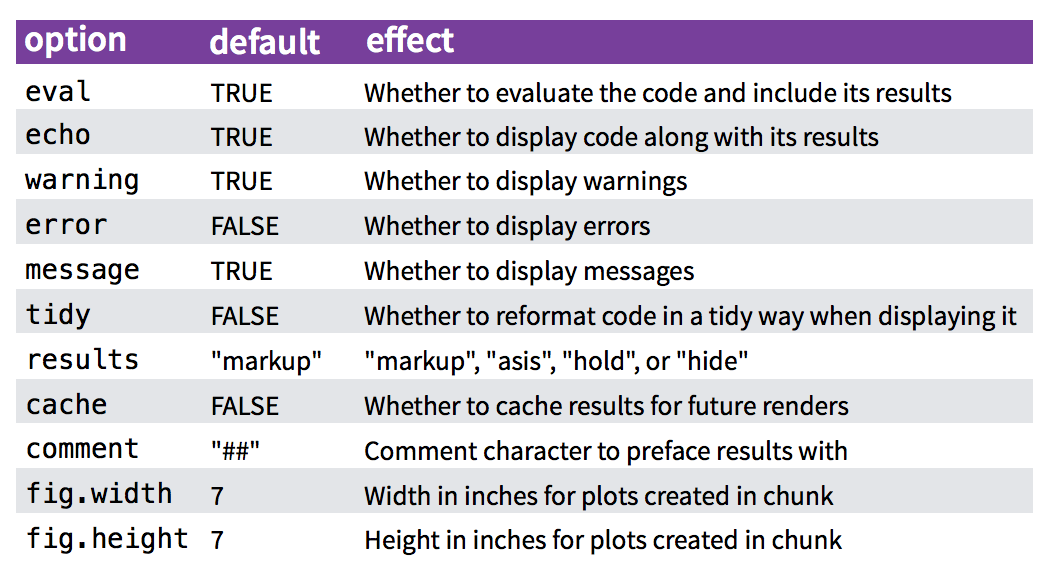
Chunk output options

By default, code chunks print code + output

```{r}
#| echo: false

cat('hello world!')
```

Prints only output
(doesn’t show code)

#> hello world!
```{r}
#| eval: false

cat('hello world!')
```

Prints only code
(doesn’t run the code)

cat("hello world!")
```{r}
#| include: false

cat('hello world!')
```

Runs, but doesn’t print anything

A global setup chunk 🌍

```{r}
#| label: setup
#| include: false

knitr::opts_chunk$set(
  warning = FALSE,
  message = FALSE,
  fig.width = 7.252,
  fig.height = 4,
  comment = "#>"
)
```
  • Typically the first chunk
  • All following chunks will use these options (i.e., sets global chunk options)
  • You can (and should) use individual chunk options too
  • Often where I load libraries, etc.

15:00
Your turn
  1. Open the bears.qmd file, and title it “Bears Analysis”

  2. Create a “setup” code chunk to read in the bear_killings.csv data file
    (HINT: You might want to look back at the quarto_demo.qmd file!).

  3. Use text and code to find answers each of the following questions - show your code and results to justify each answer:

  • Which months have the highest frequency of bear killings?
  • Who has been killed more often by bears: hunters or hikers?
  • How do the the number of bear attacks on men vs women compare?

HINT: Use bears %>% count(variable) to count how many rows are in the data for each unique value of variable

Week 5: Quarto & Plotting

1. Intro to Quarto

2. Intro to ggplot2

3. Project attributes & levels

4. Conjoint survey components

“Grammar of Graphics”

Concept developed by Leland Wilkinson (1999)

ggplot2 package developed by Hadley Wickham (2005)

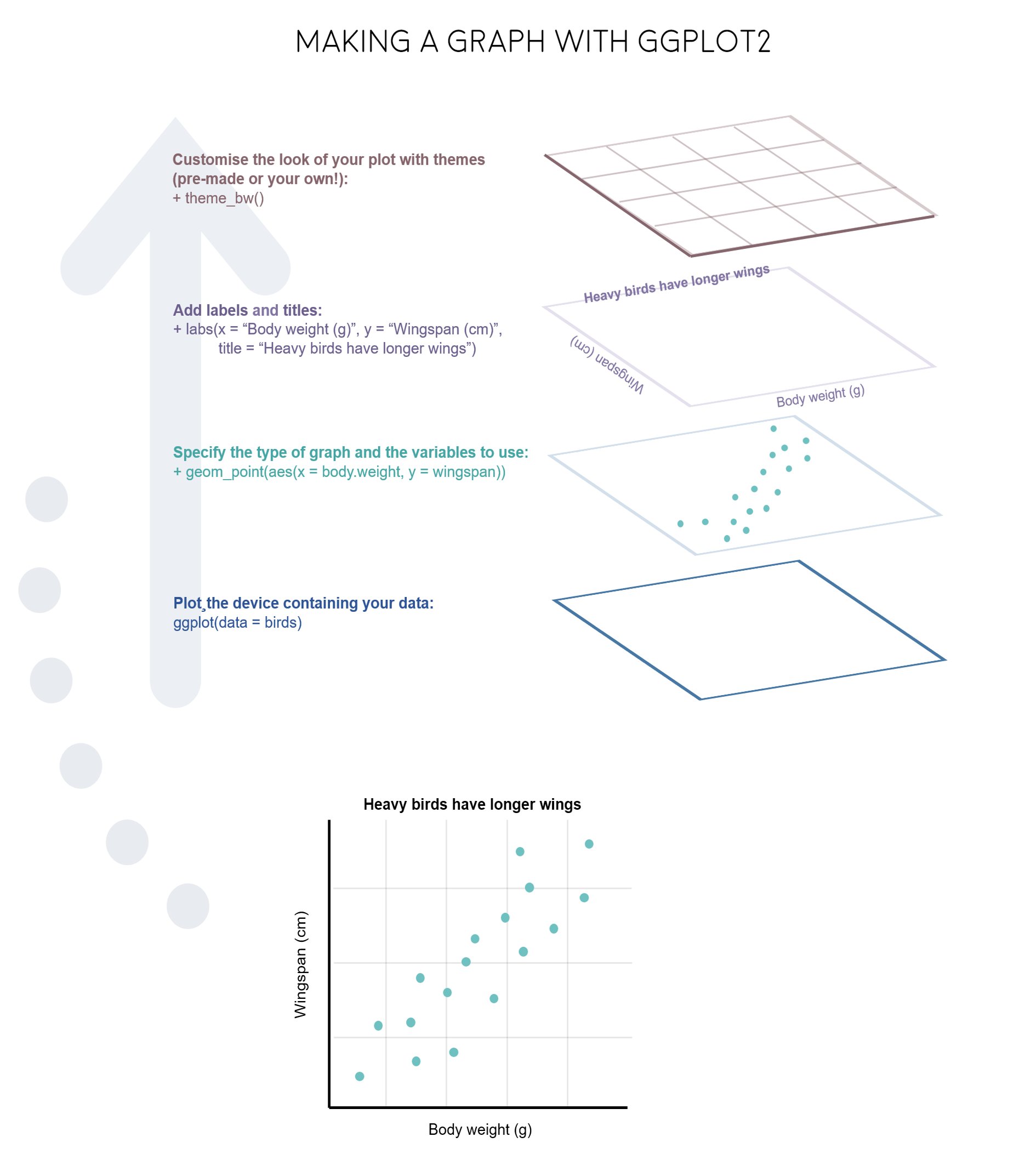
Making plot layers with ggplot2


1. The data

2. The aesthetic mapping (what goes on the axes?)

3. The geometries (points? bars? etc.)

4. The annotations / labels

5. The theme

Layer 1: The data

head(mpg)
#> # A tibble: 6 × 11
#>   manufacturer model displ  year   cyl trans      drv     cty   hwy fl    class  
#>   <chr>        <chr> <dbl> <int> <int> <chr>      <chr> <int> <int> <chr> <chr>  
#> 1 audi         a4      1.8  1999     4 auto(l5)   f        18    29 p     compact
#> 2 audi         a4      1.8  1999     4 manual(m5) f        21    29 p     compact
#> 3 audi         a4      2    2008     4 manual(m6) f        20    31 p     compact
#> 4 audi         a4      2    2008     4 auto(av)   f        21    30 p     compact
#> 5 audi         a4      2.8  1999     6 auto(l5)   f        16    26 p     compact
#> 6 audi         a4      2.8  1999     6 manual(m5) f        18    26 p     compact

Layer 1: The data

The ggplot() function initializes the plot with whatever data you’re using

mpg %>%
  ggplot()

Layer 2: The aesthetic mapping

The aes() function determines which variables will be mapped to the geometries
(e.g. the axes)
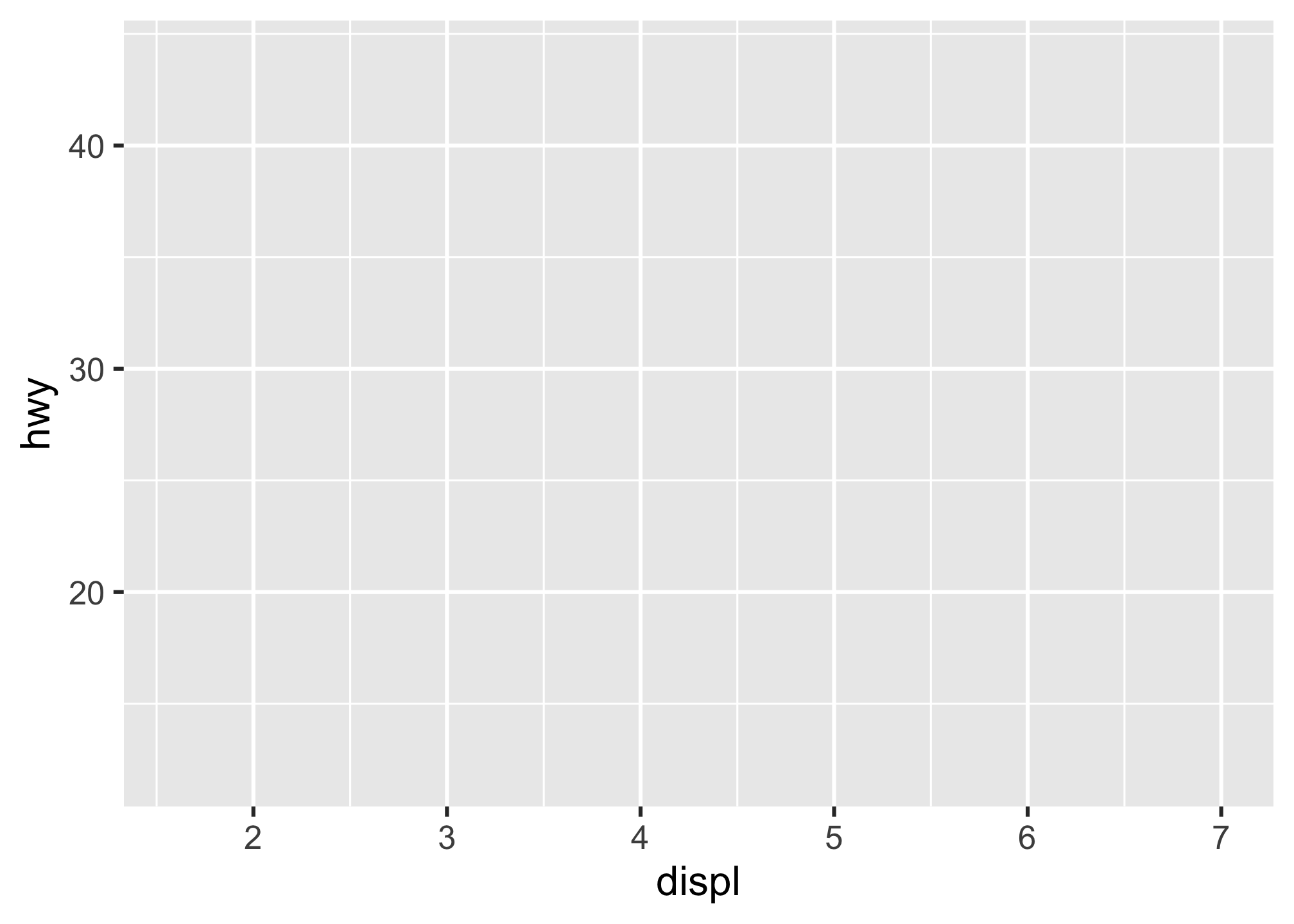
mpg %>%
  ggplot(aes(x = displ, y = hwy))

Layer 3: The geometries

Use + to add geometries, e.g. geom_points() for points
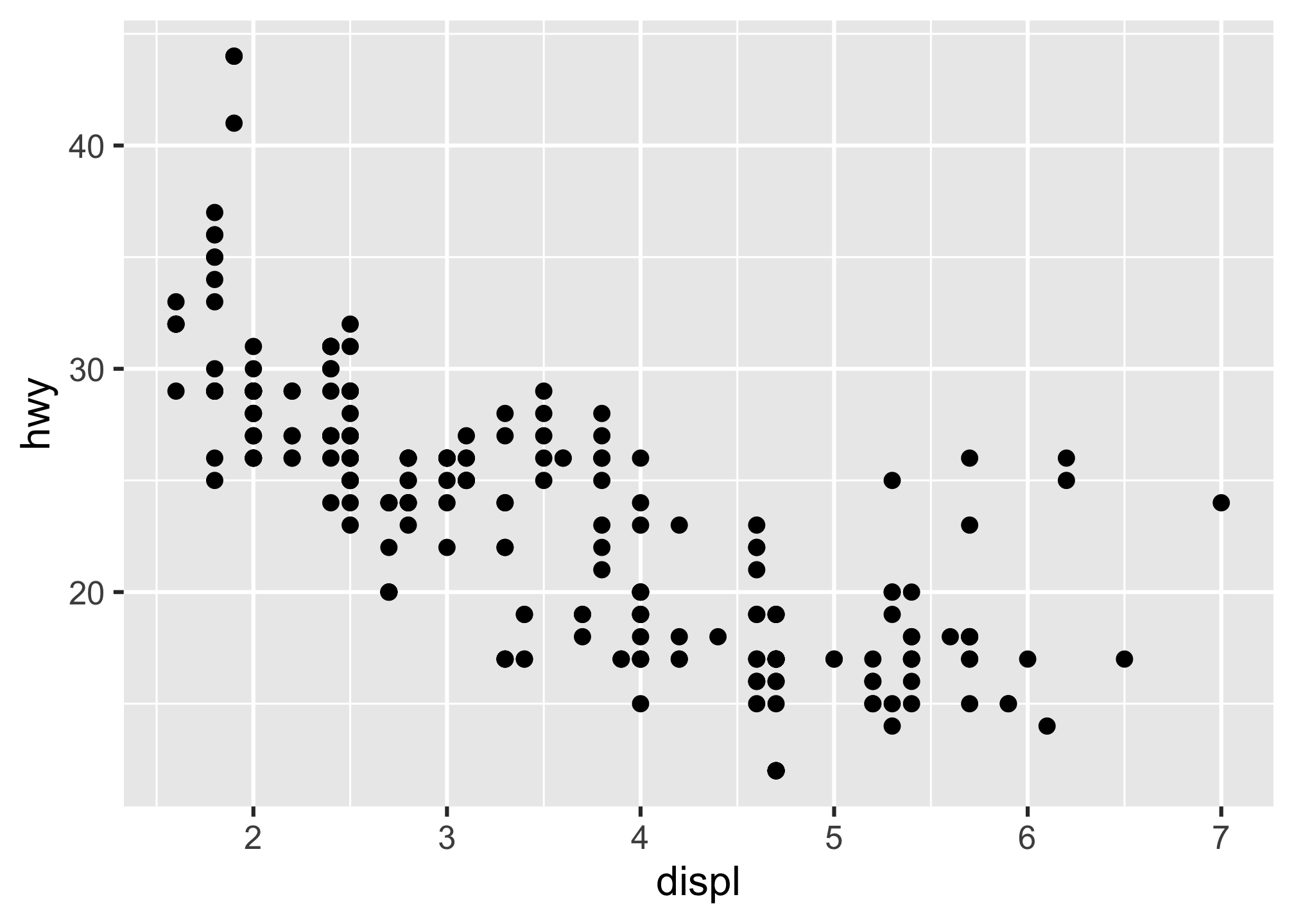
mpg %>%
  ggplot(aes(x = displ, y = hwy)) +
  geom_point()

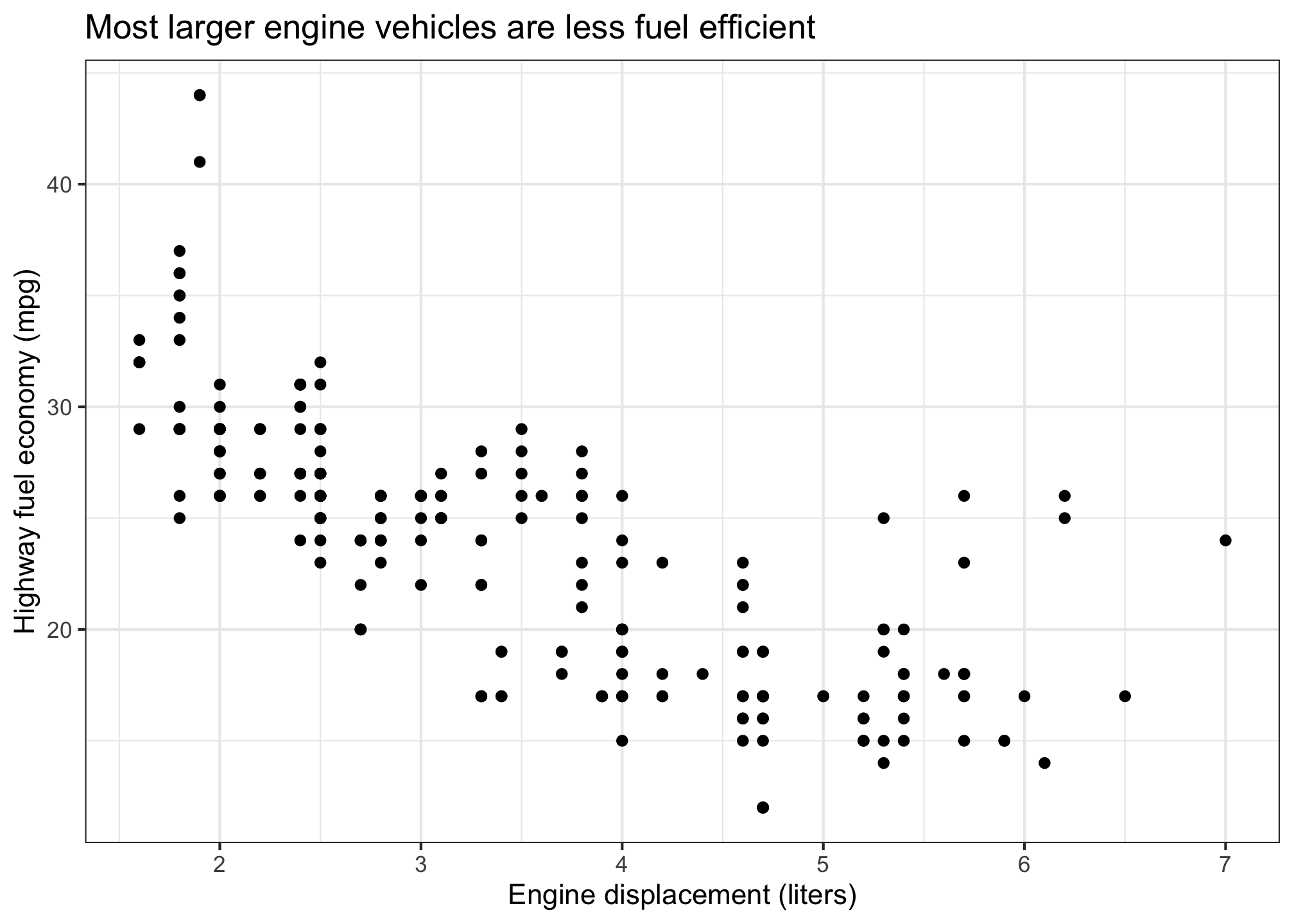
Layer 4: The annotations / labels

Use labs() to modify most labels
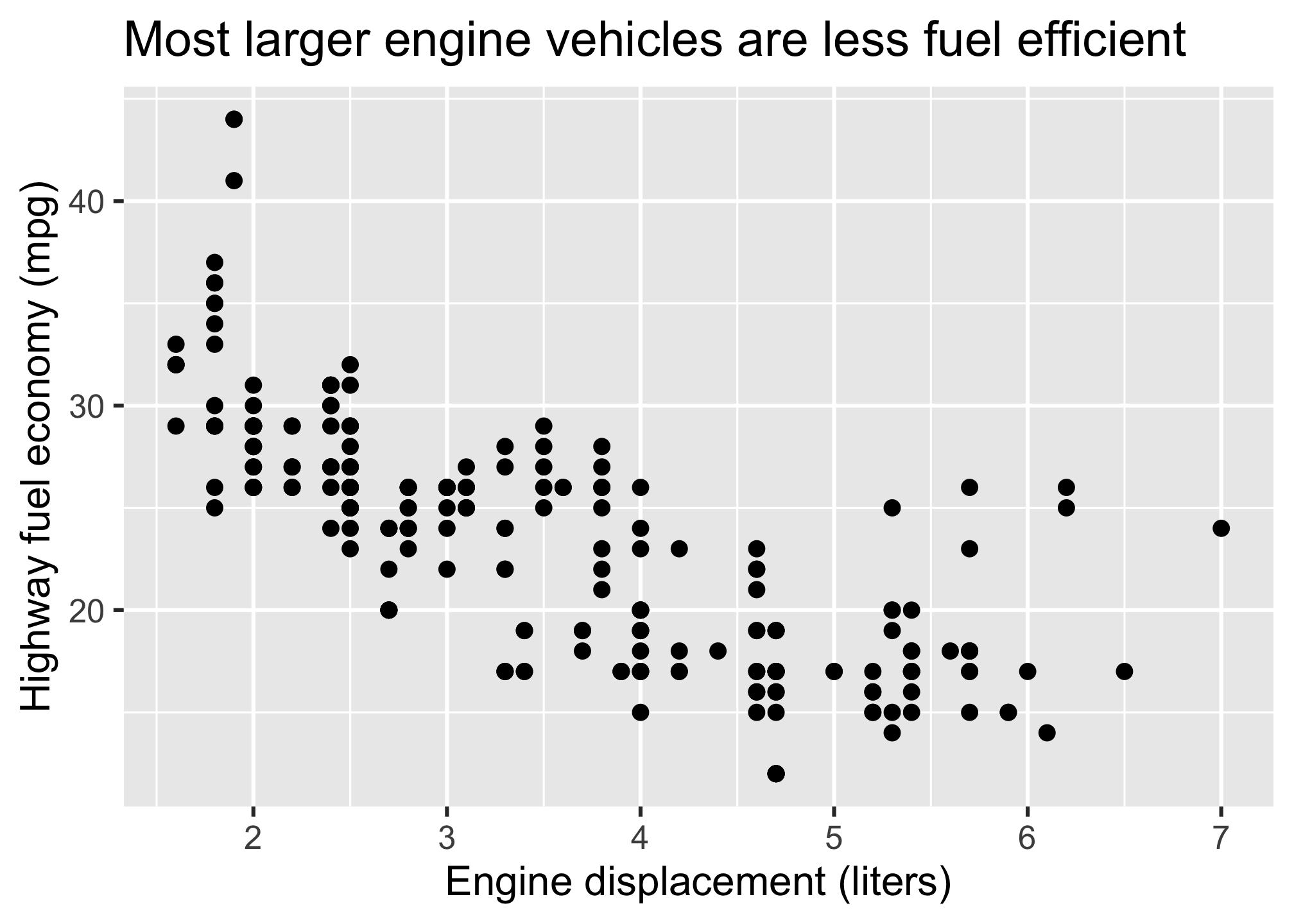
mpg %>%
  ggplot(aes(x = displ, y = hwy)) +
  geom_point() +
  labs(
    x = "Engine displacement (liters)",
    y = "Highway fuel economy (mpg)",
    title = "Most larger engine vehicles are less fuel efficient"
  )

Layer 5: The theme

mpg %>%
  ggplot(aes(x = displ, y = hwy)) +
  geom_point() +
  labs(
    x = "Engine displacement (liters)",
    y = "Highway fuel economy (mpg)",
    title = "Most larger engine vehicles are less fuel efficient"
  ) +
  theme_bw()

Common themes

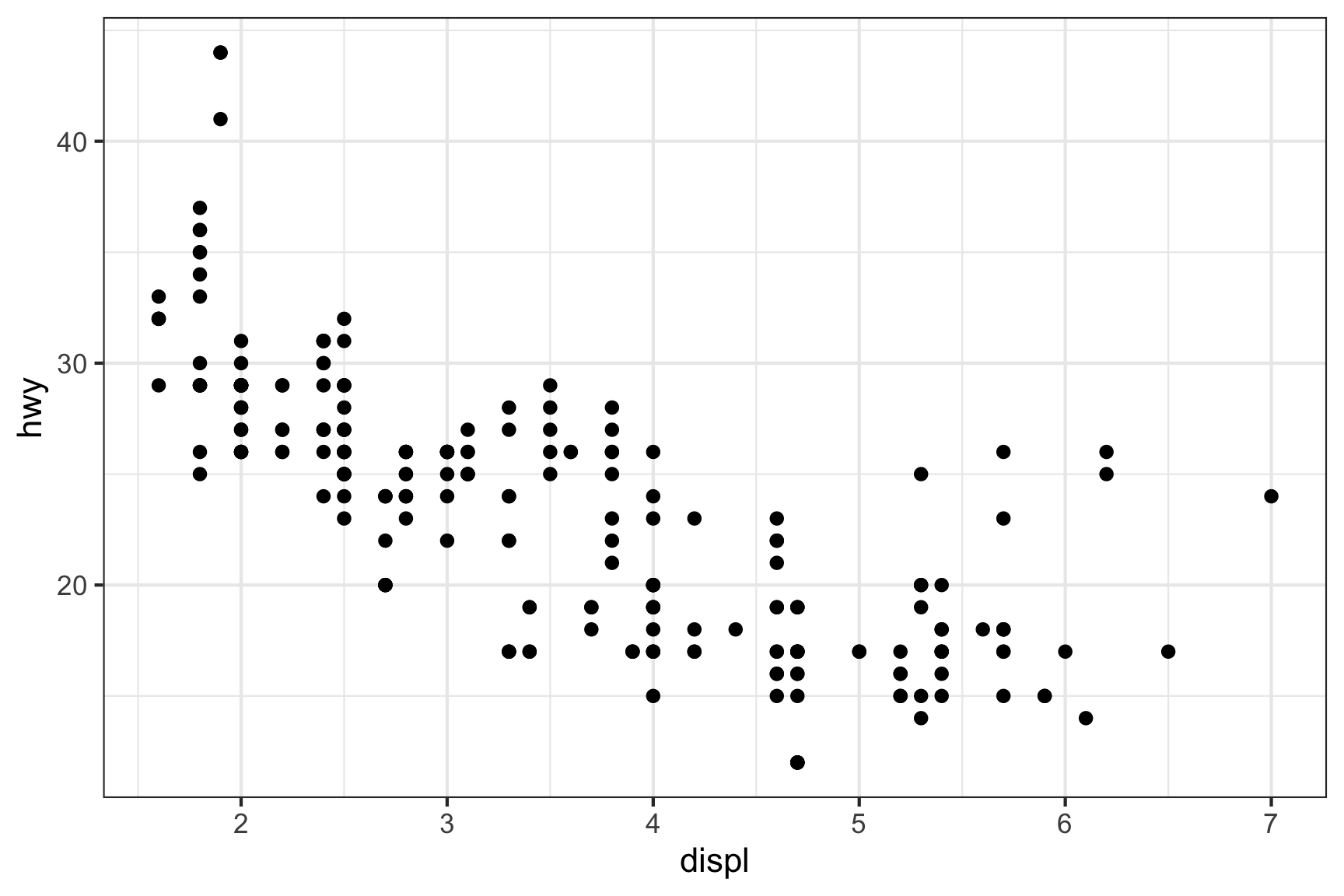
theme_bw()

mpg %>%
  ggplot(aes(x = displ, y = hwy)) +
  geom_point() +
  theme_bw()

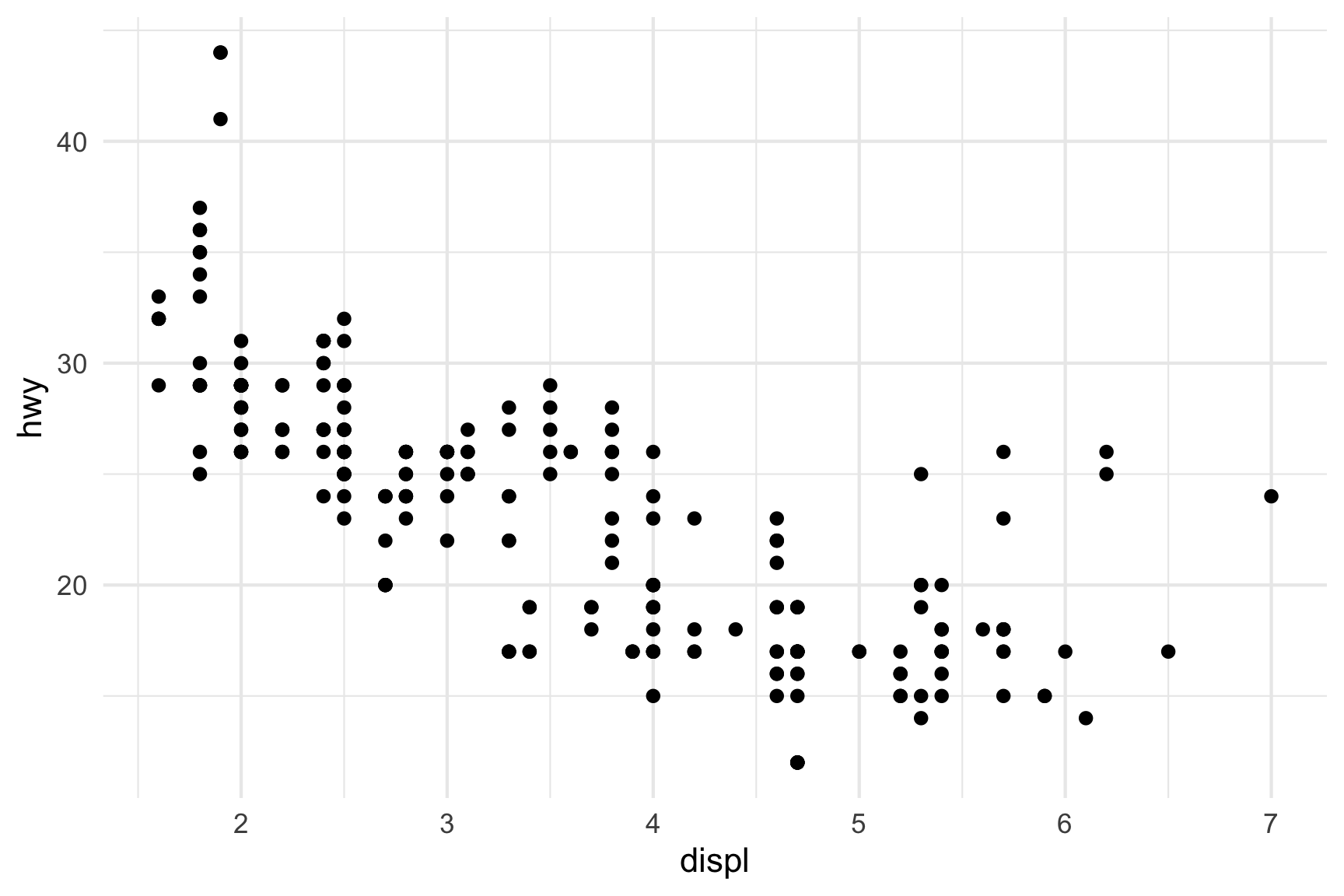
theme_minimal()

mpg %>%
  ggplot(aes(x = displ, y = hwy)) +
  geom_point() +
  theme_minimal()

Common themes

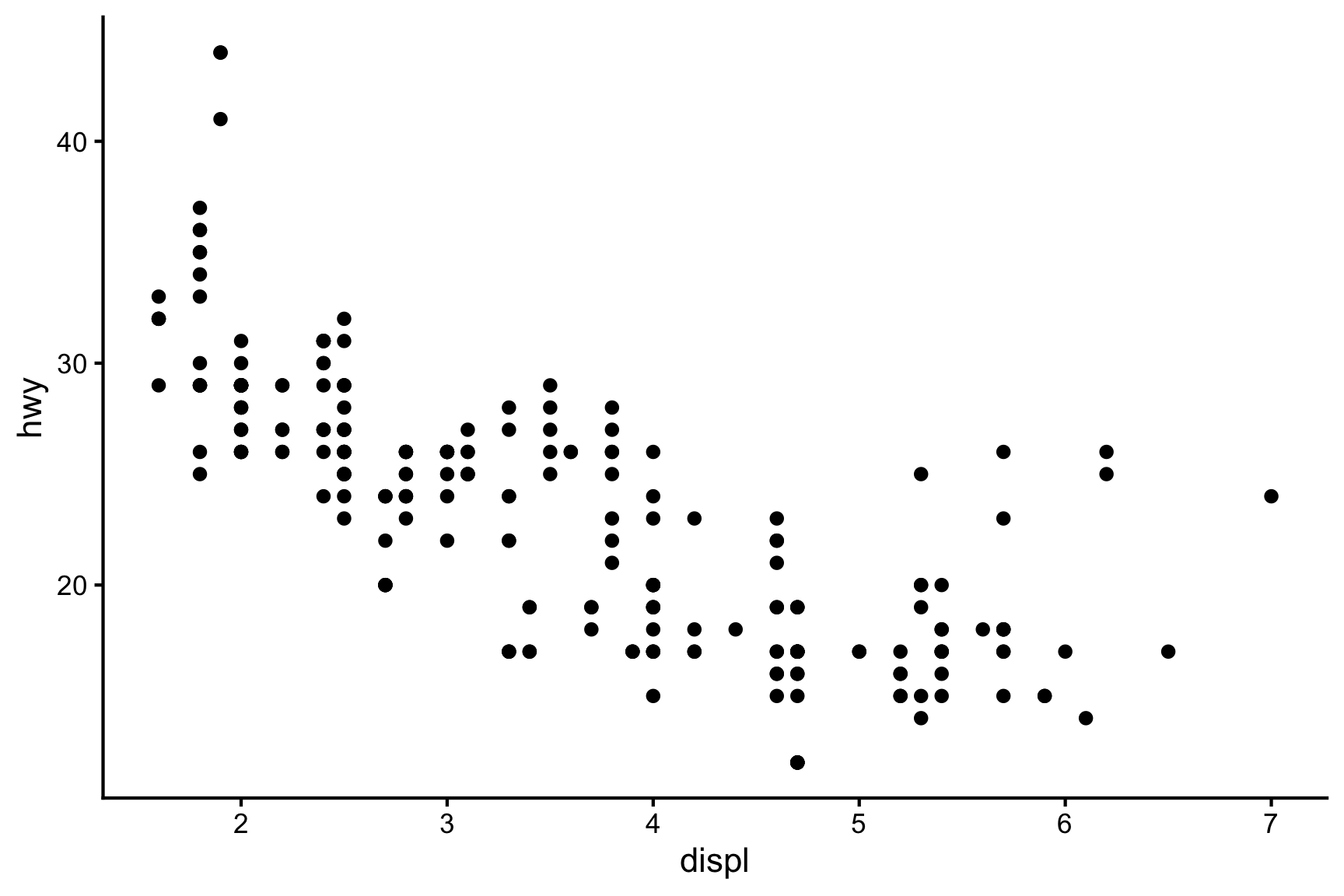
theme_classic()

mpg %>%
  ggplot(aes(x = displ, y = hwy)) +
  geom_point() +
  theme_classic()

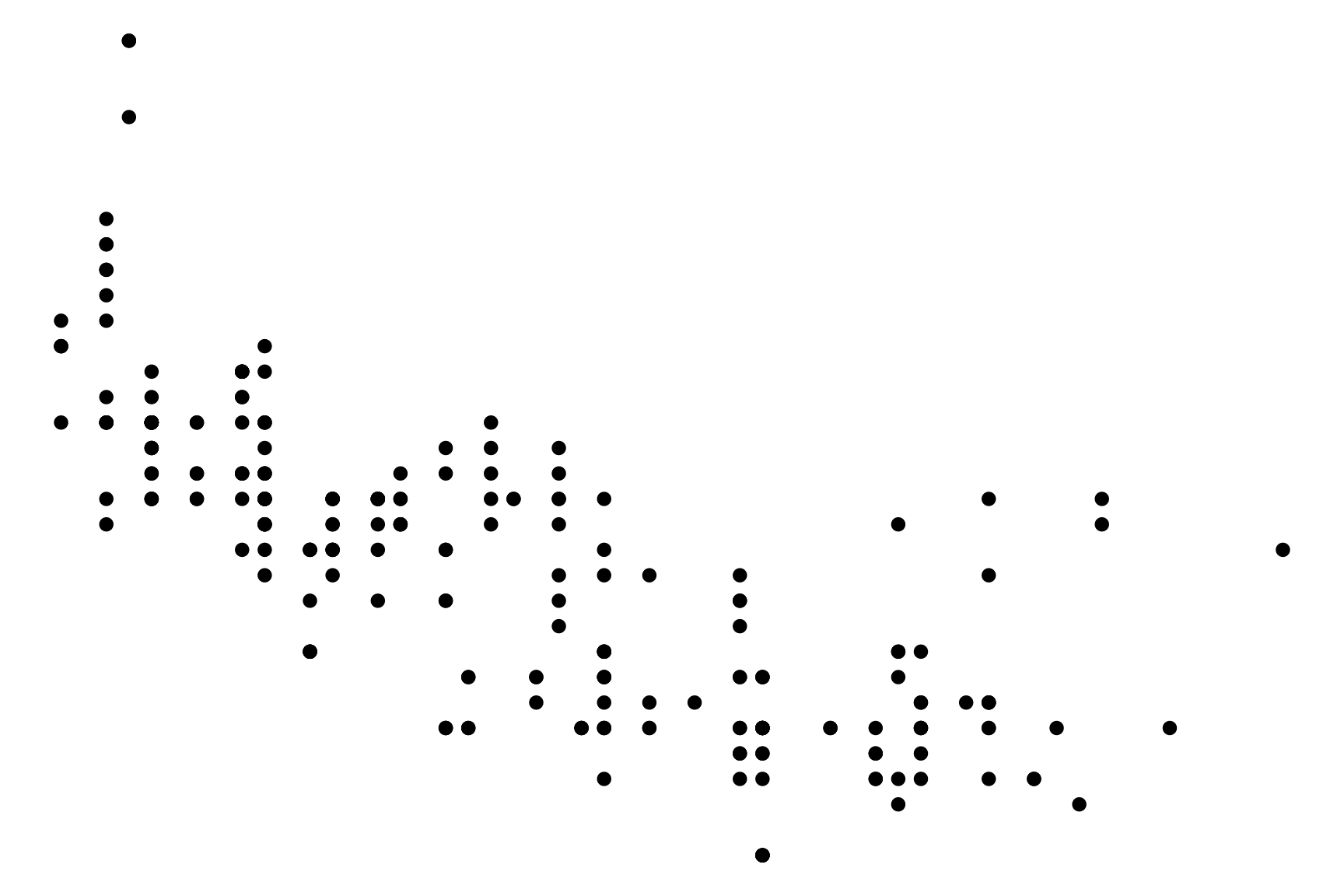
theme_void()

mpg %>%
  ggplot(aes(x = displ, y = hwy)) +
  geom_point() +
  theme_void()

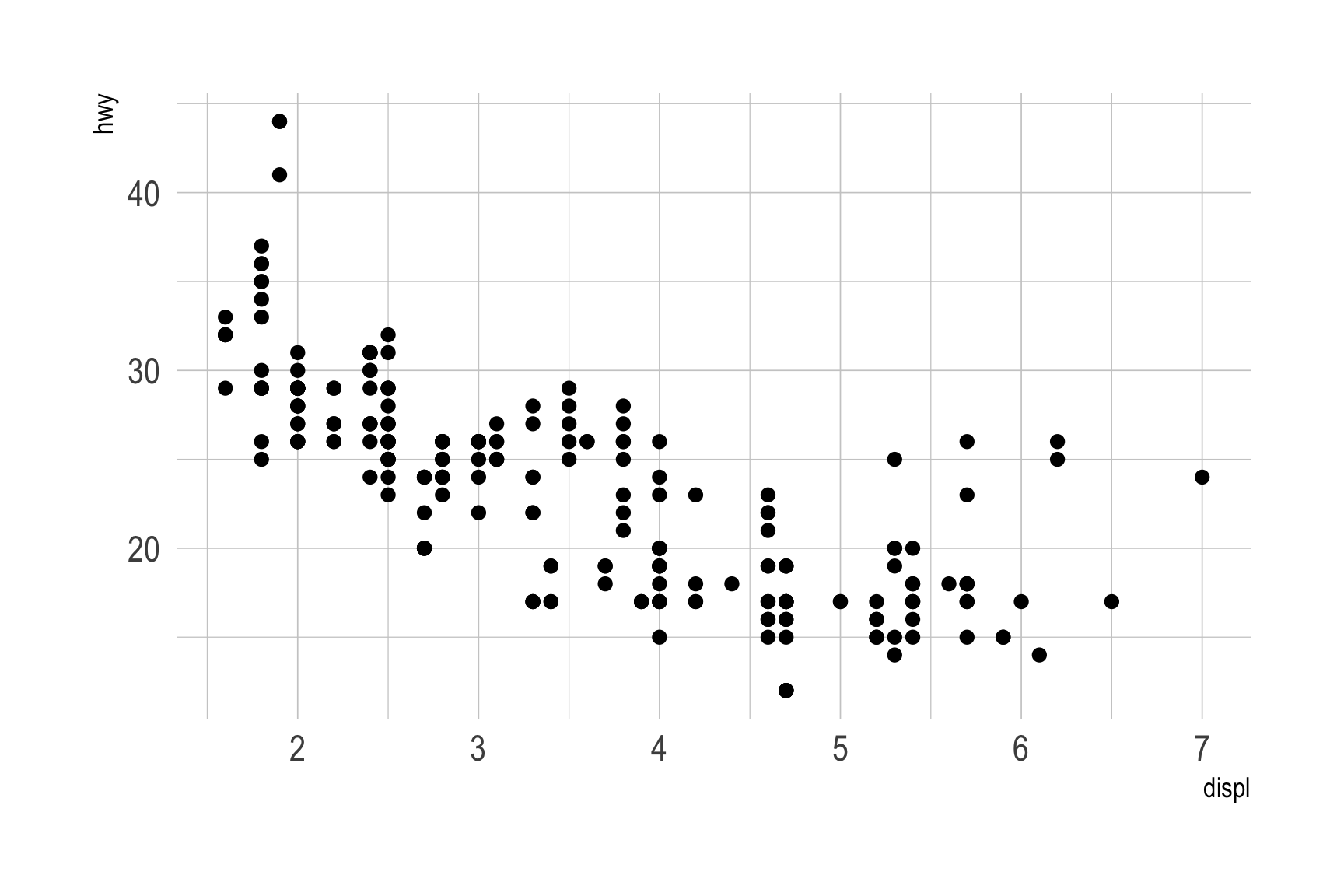
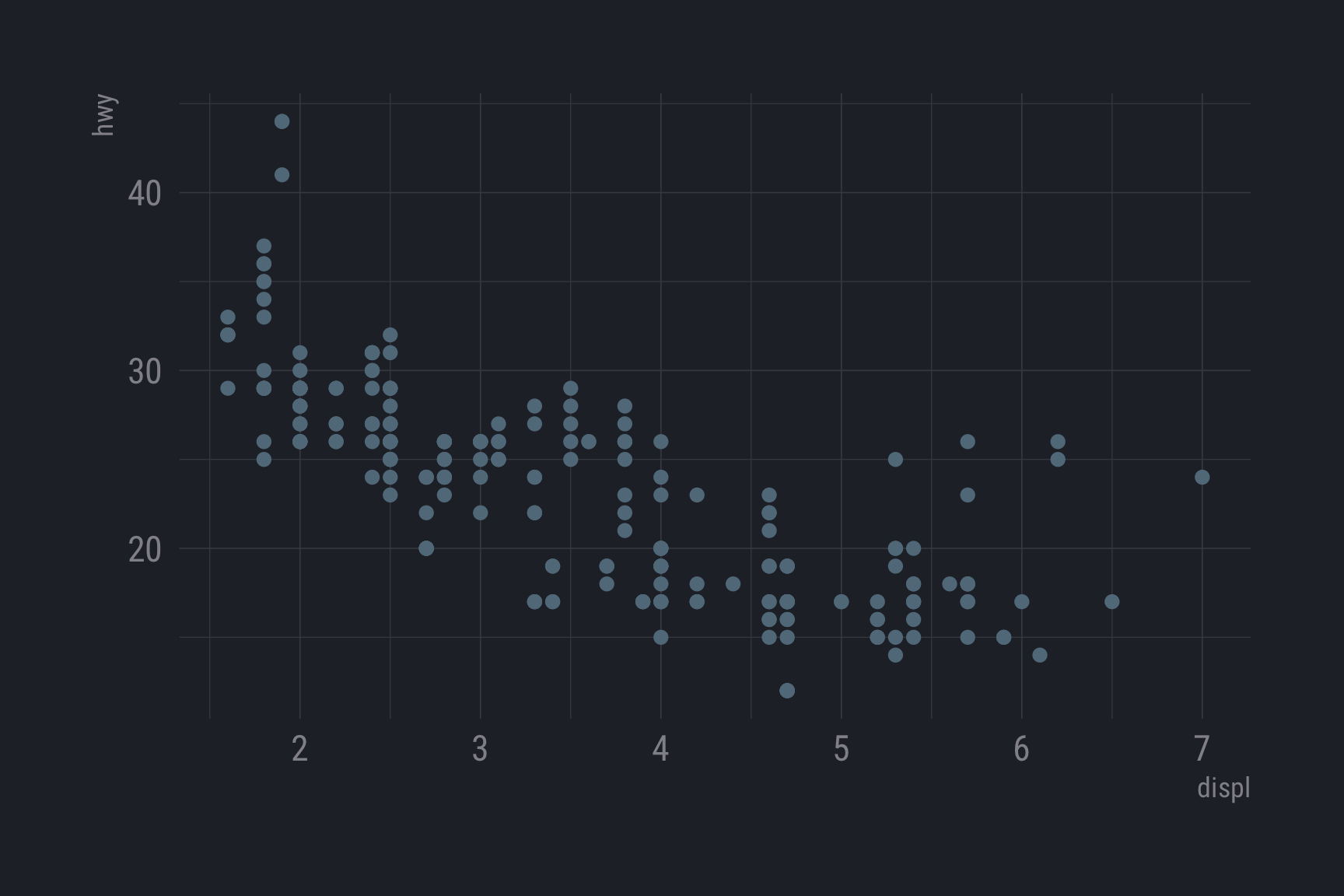
Other themes: hrbrthemes

remotes::install_github("hrbrmstr/hrbrthemes")
mpg %>%
  ggplot(aes(x = displ, y = hwy)) +
  geom_point() +
  hrbrthemes::theme_ipsum()

mpg %>%
  ggplot(aes(x = displ, y = hwy)) +
  geom_point() +
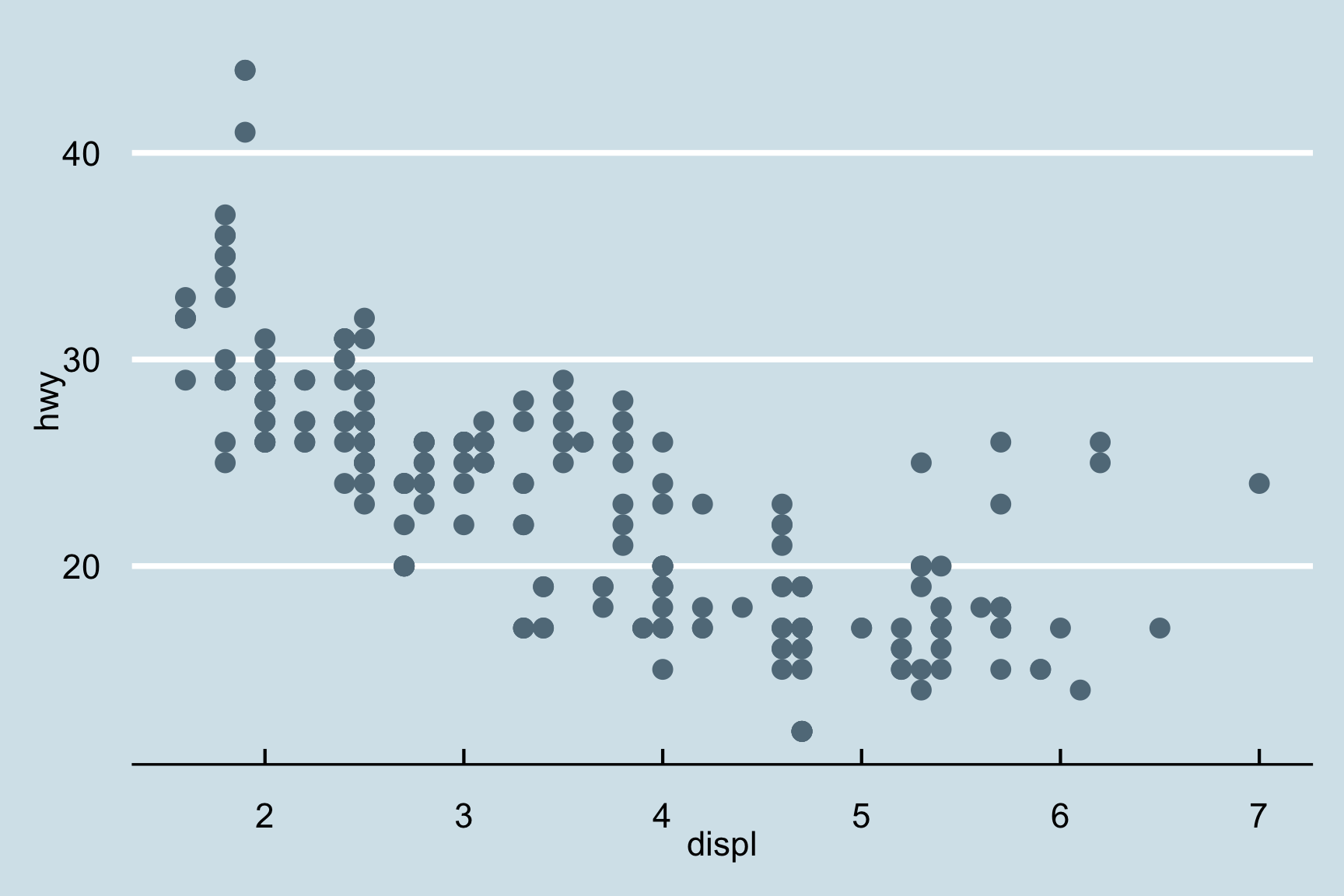
  hrbrthemes::theme_ft_rc()

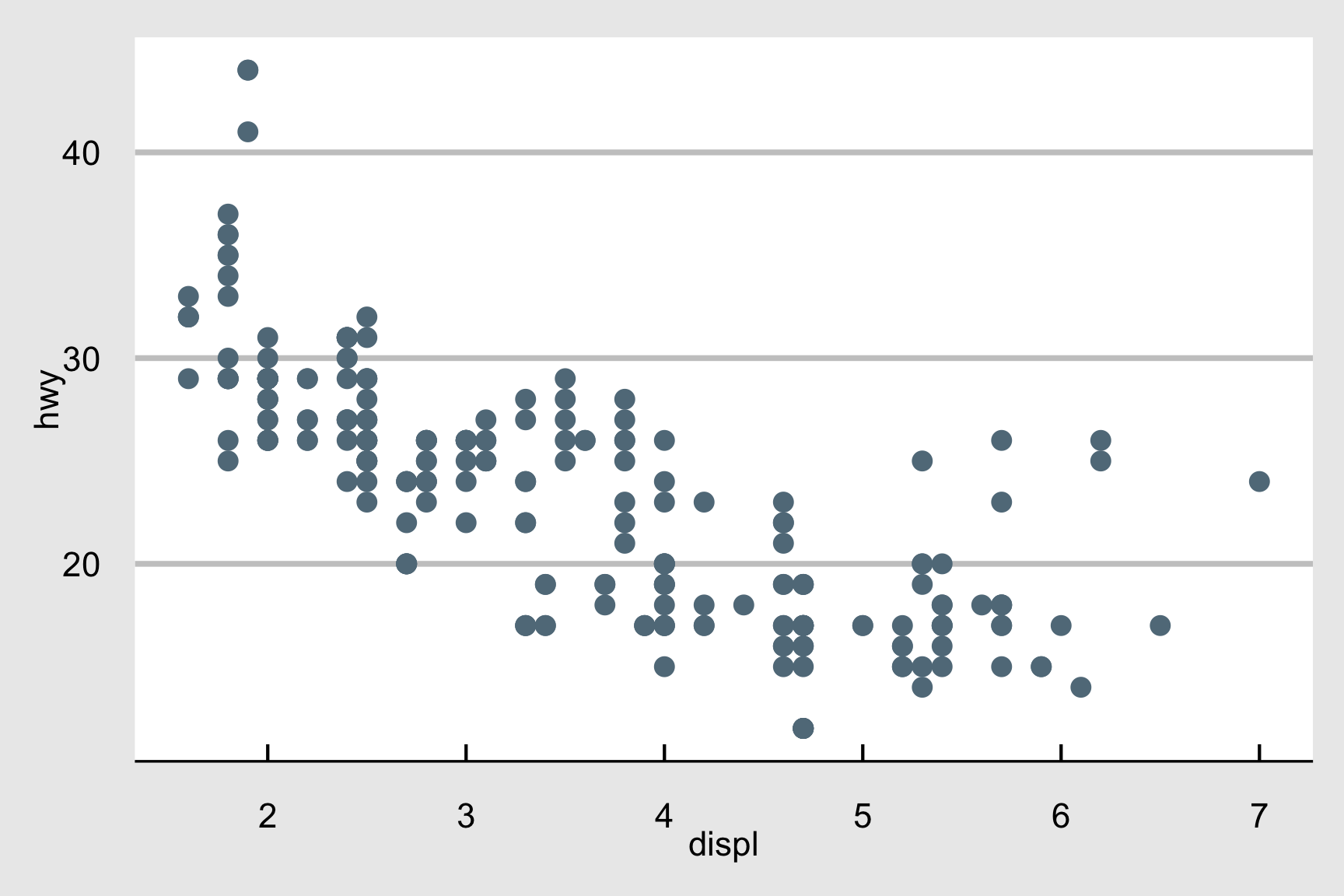
Other themes: ggthemes

install.packages('ggthemes', dependencies = TRUE)
mpg %>%
  ggplot(aes(x = displ, y = hwy)) +
  geom_point() +
  ggthemes::theme_economist()

mpg %>%
  ggplot(aes(x = displ, y = hwy)) +
  geom_point() +
  ggthemes::theme_economist_white()

More practice
Open ggplot2.qmd

15:00
Your turn

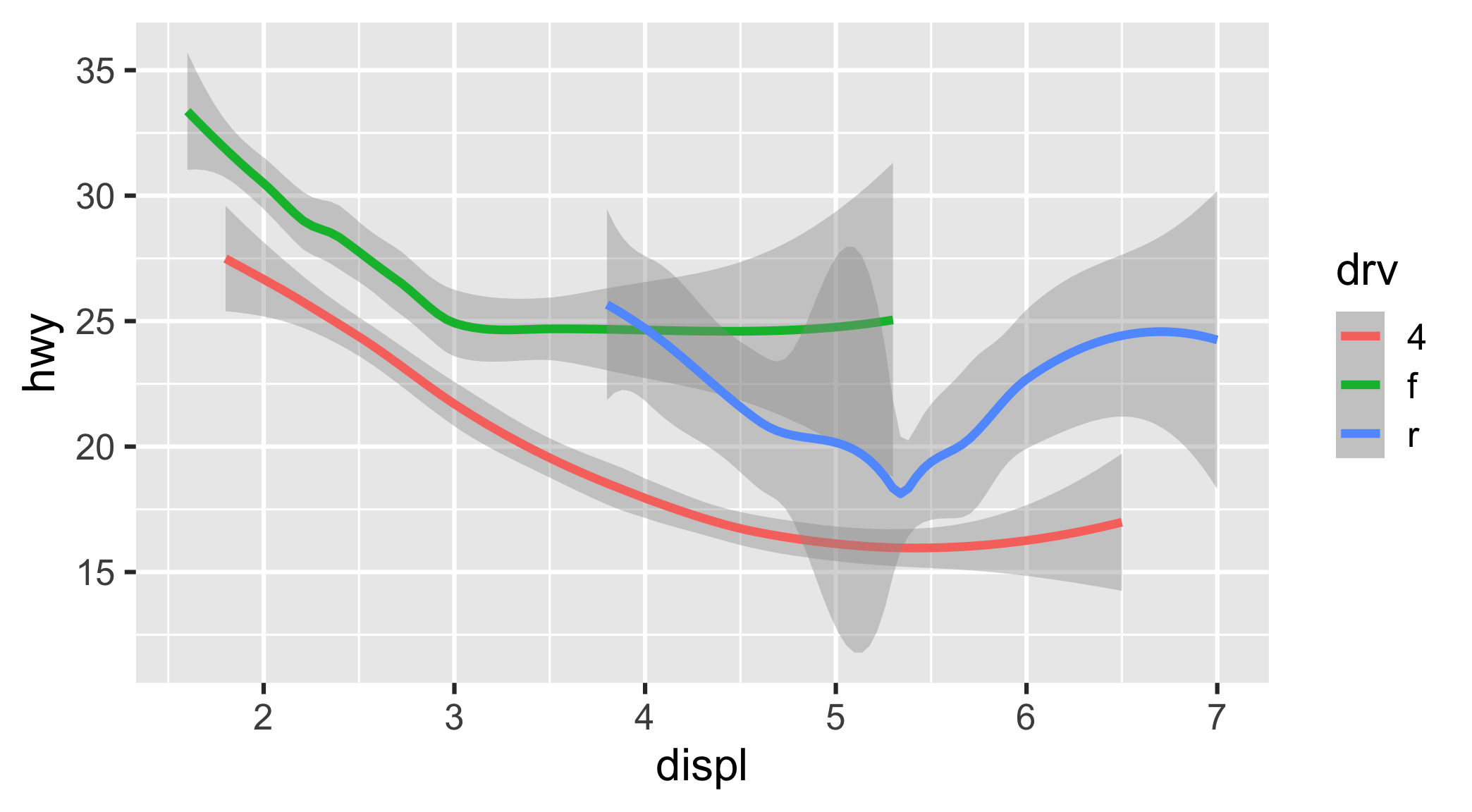
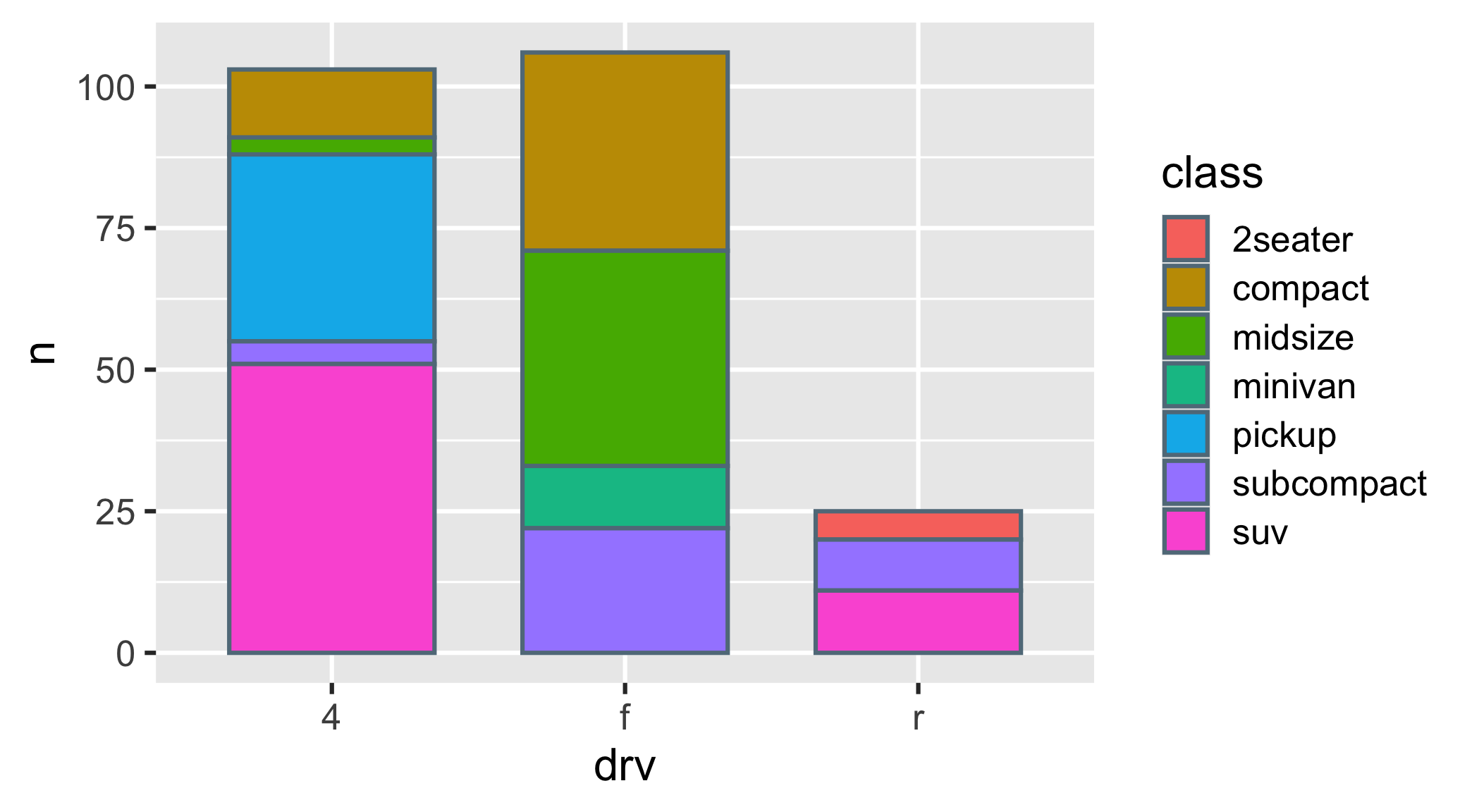
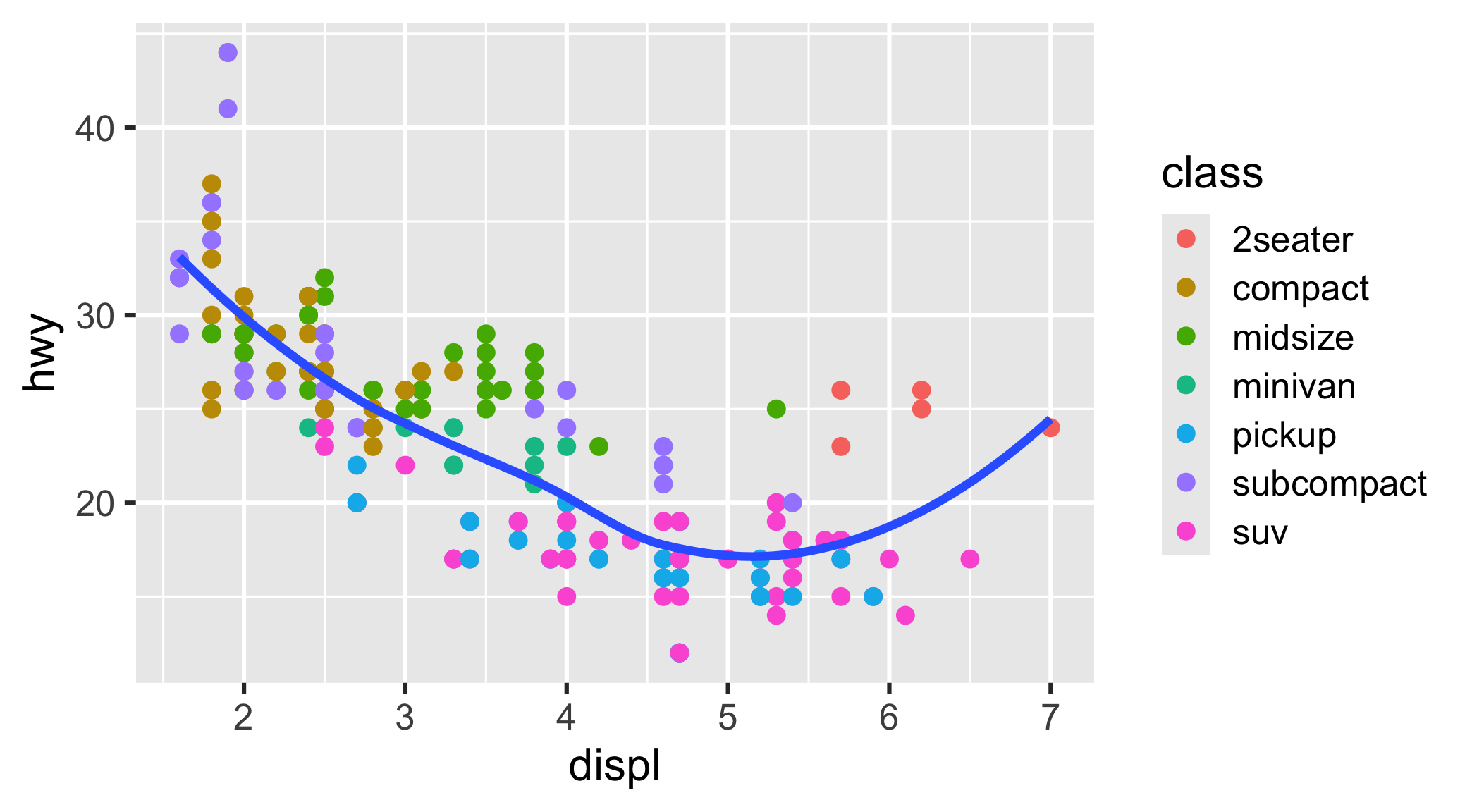
In the “Practice” section of ggplot2.qmd

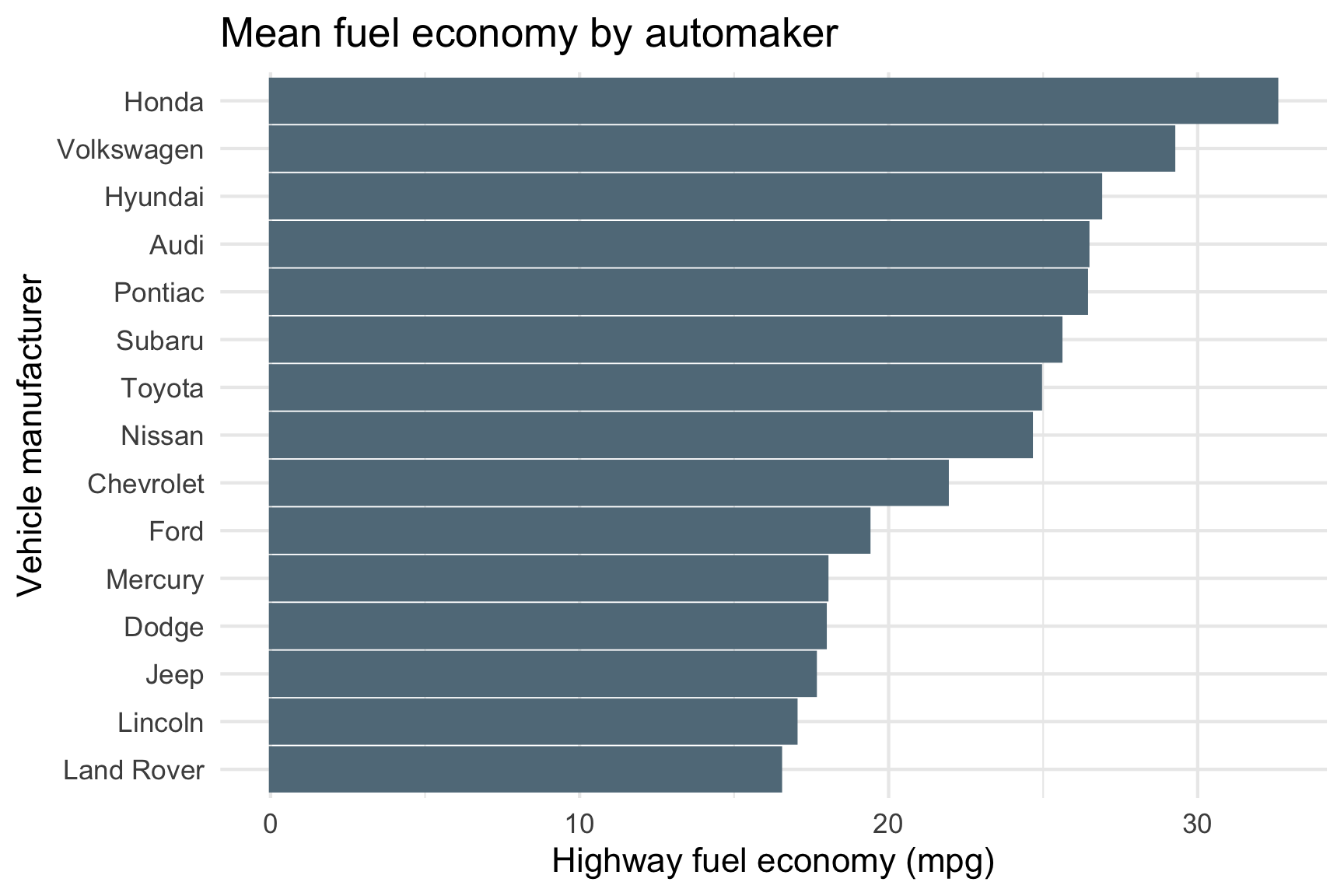
Use the mpg data frame and ggplot to create these charts
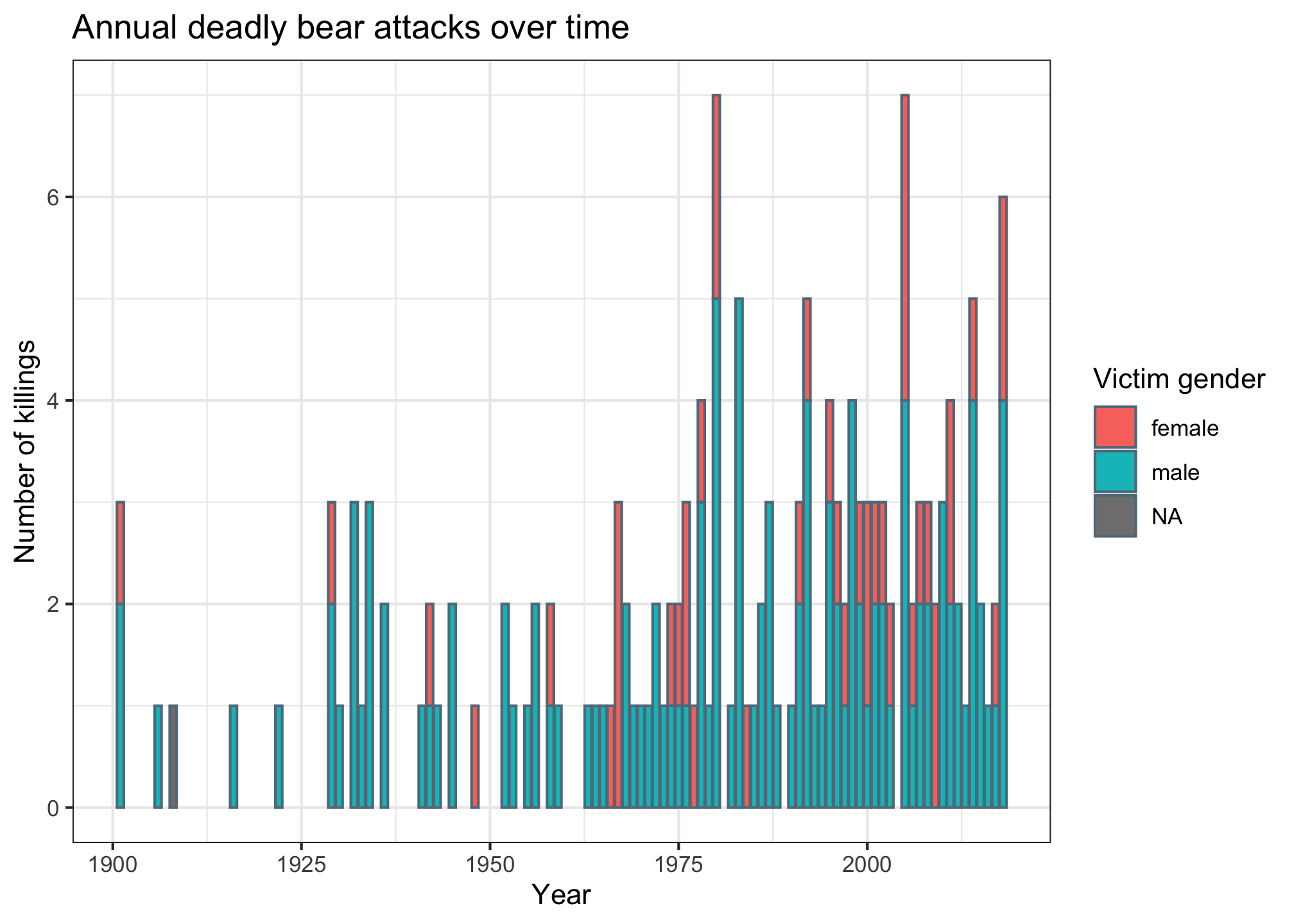
Extra practice
Break

05:00

Week 5: Quarto & Plotting

1. Intro to Quarto

2. Intro to ggplot2

3. Project attributes & levels

4. Conjoint survey components

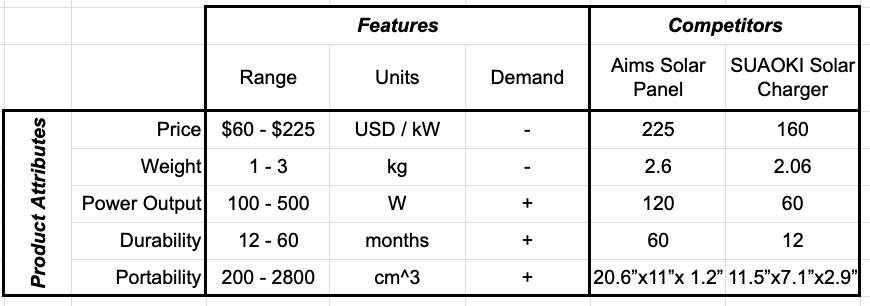
Model Relationships Table (example)

Start defining attribute levels

Defining attribute levels

Continuous
  • Price: 1, 2, 3, 4, 5 ($)
  • Power Output: 60, 80, 120 (Watts)
Discrete
  • Color: Red, Blue, Yellow
  • Material: Plastic, Aluminum, Glass
  • Look at competitors
  • Search web for values that cover the full set of values available today (and maybe some into the future)

Week 5: Quarto & Plotting

1. Intro to Quarto

2. Intro to ggplot2

3. Project attributes & levels

4. Conjoint survey components

3 Parts


  • Part 1: Intro
  • Part 2: Conjoint questions
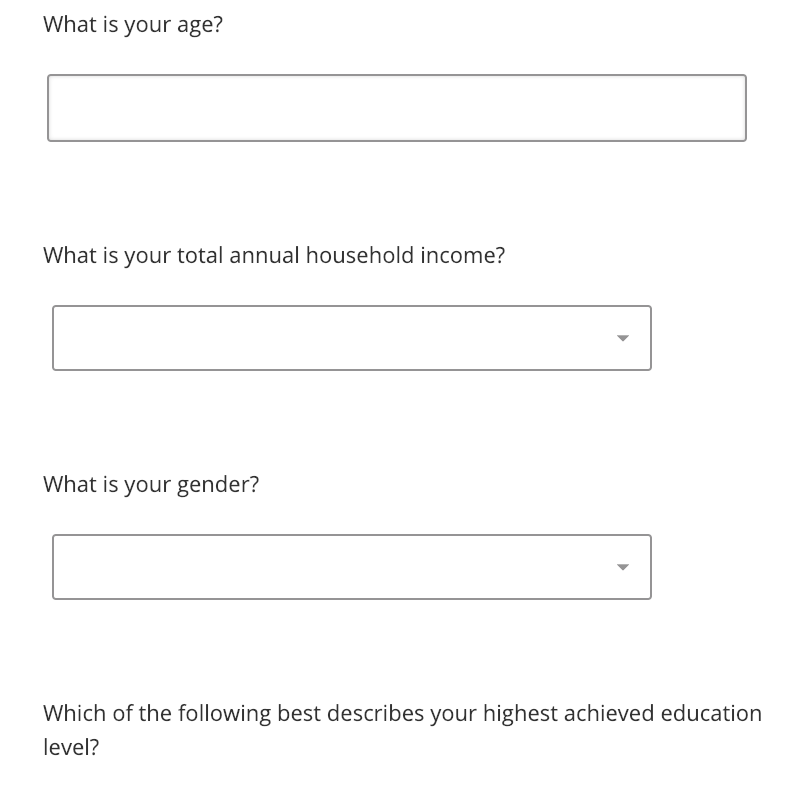
  • Part 3: Other / demographic questions

3 Parts


  • Part 1: Intro → screen for target population
  • Part 2: Conjoint questions → screen for random answers
  • Part 3: Other / demographic questions

Think of your survey as a conversation


  • Include “transition” pages (e.g. Great job! Now we’ll ask you about…)

Part 1: Intro

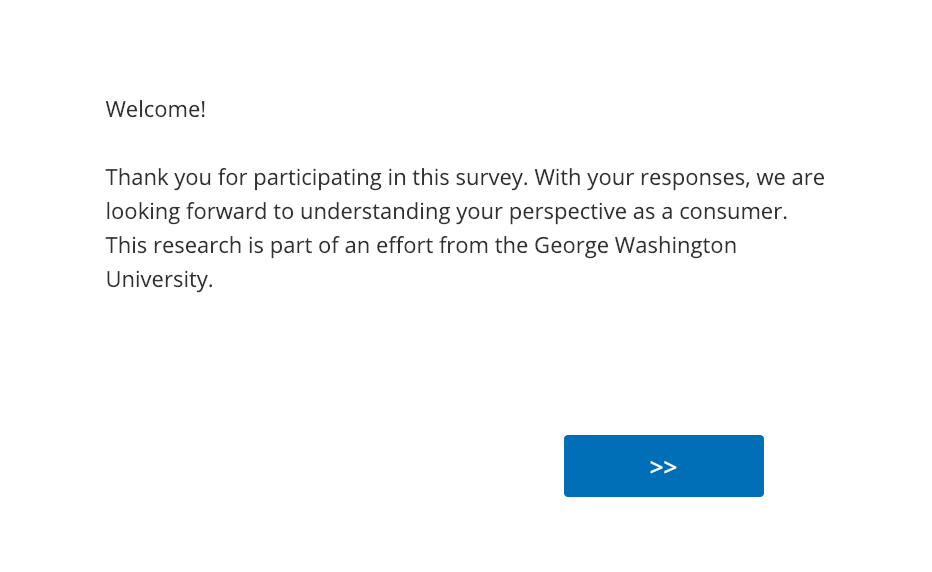
Start with a welcome page

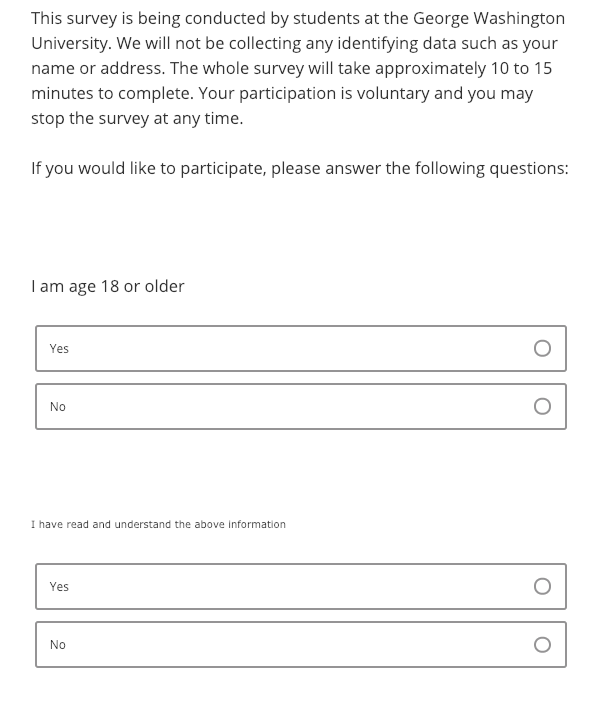
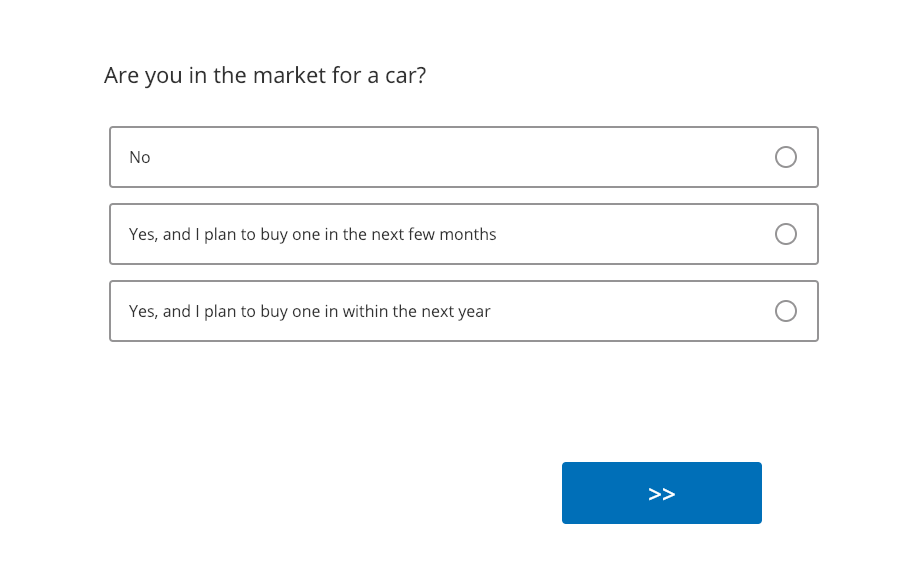
Eligibility questions: who is your target population?

Filter out respondents here
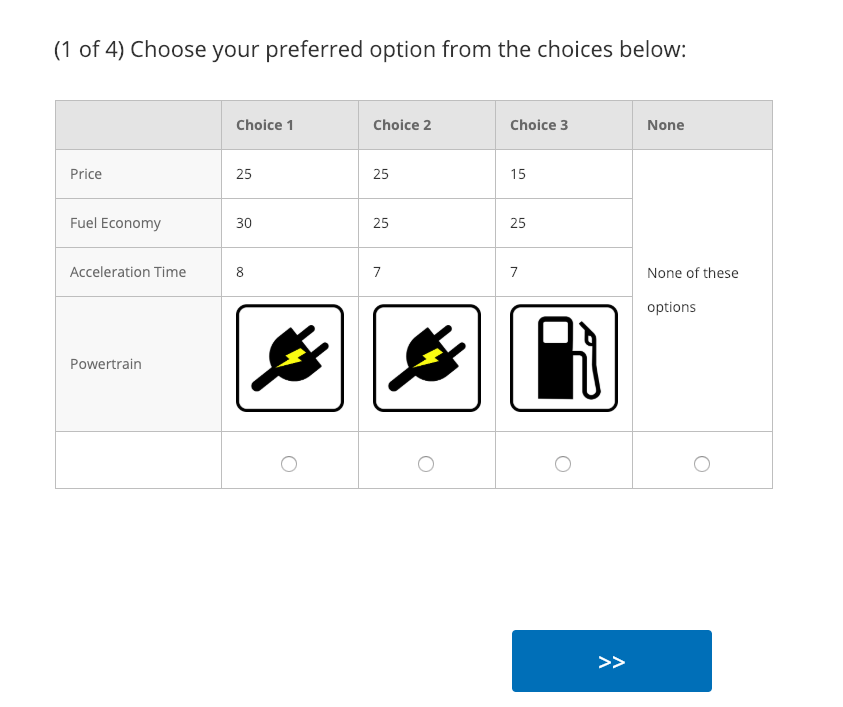
Part 2: Conjoint questions

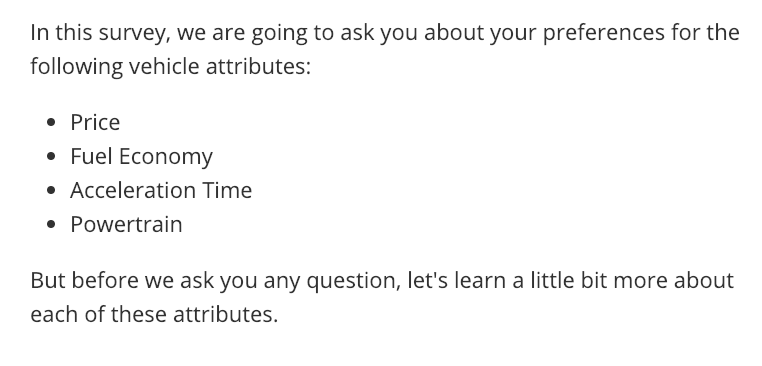
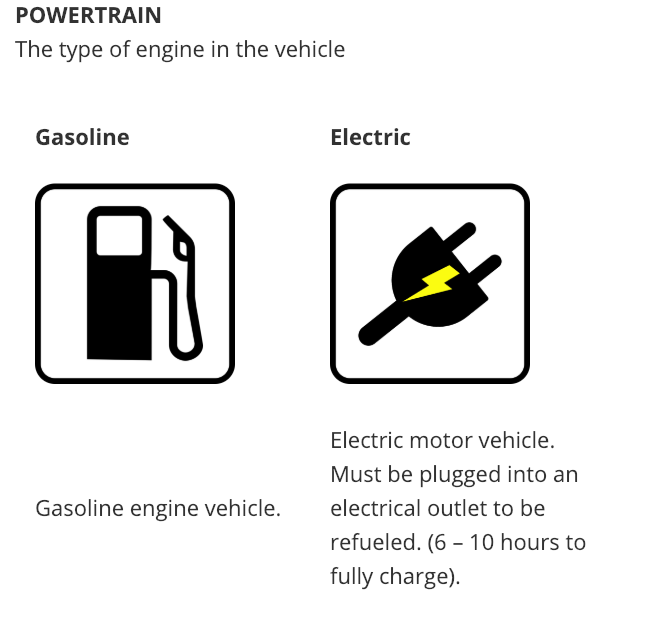
Education information

Education information
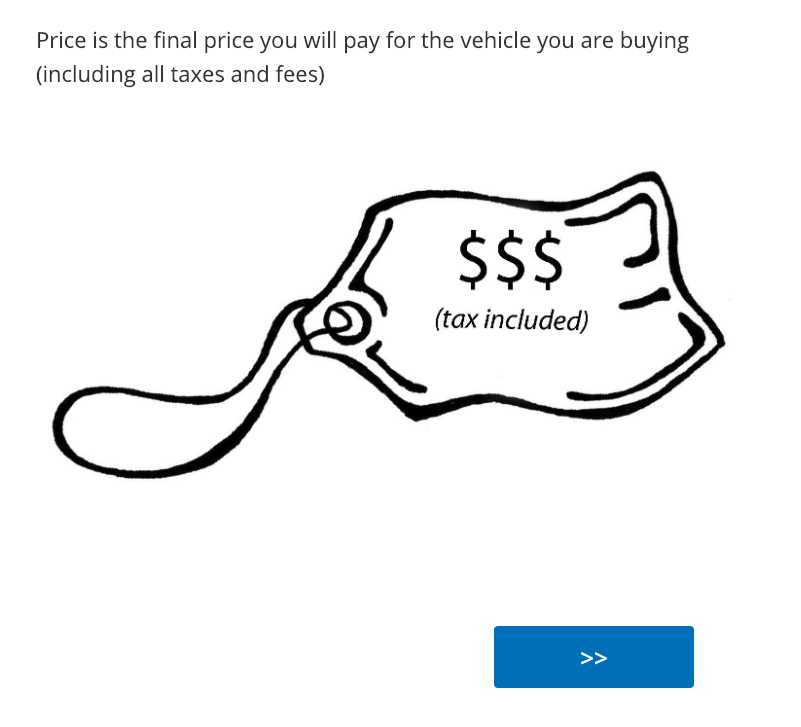
Can be helpful to provide relative comparisons

Weight:

  • 1/2 lbs (similar to 1 cup water)
  • 8 lbs (similar to 1 gallon of milk)

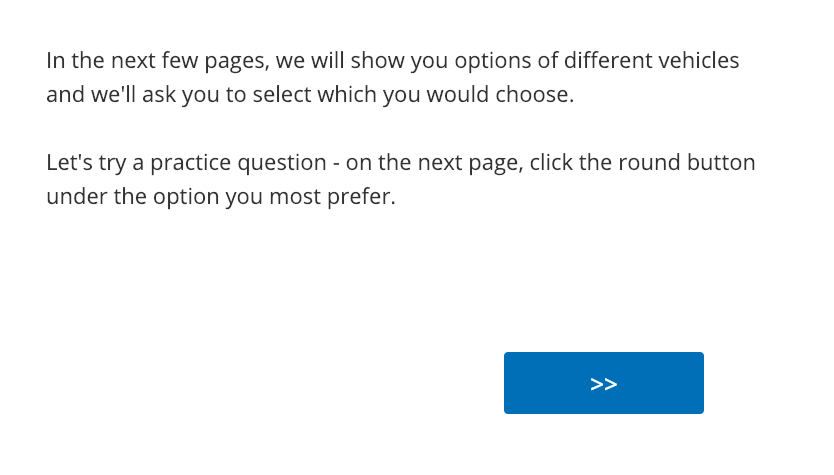
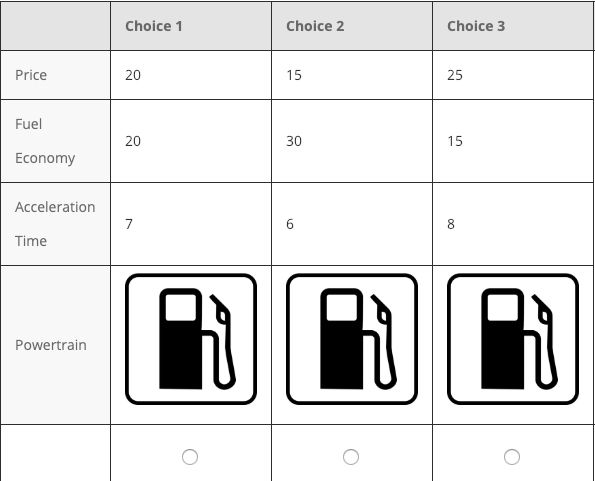
Conjoint intro

Practice conjoint (also attention check)

May also filter out respondents here
Transition to actual conjoint questions
Conjoint questions
May also filter out respondents at the end

(e.g. chose all same answers)
Part 3: Other / demographic questions

Transition

Critical respondent information
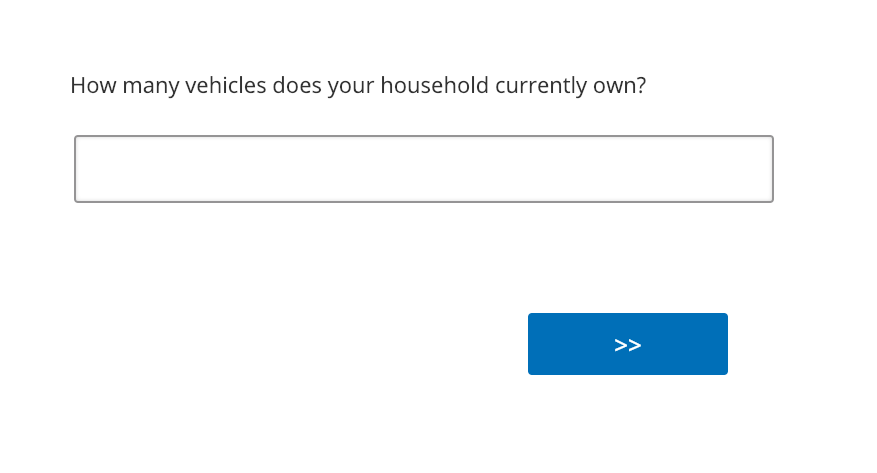
Demographic / other questions
Finale
Project survey plan
(Due in 6 days - next Tuesday)