10:00

Intro to surveydown
EMSE 6035: Marketing Analytics for Design Decisions
John Paul Helveston
September 30, 2026
Quiz 2
Write your name on the quiz!
Rules:
- Work alone; no outside help of any kind is allowed.
- No calculators, no notes, no books, no computers, no phones.

Week 6: Intro to surveydown
1. What is surveydown?
2. Survey basics
3. Conditional logic
4. Storing & fetching data
5. Reactivity
Before we start…
1. Install surveydown
2. Download today’s class files
Each demo-* folder is a complete survey.
Open one in Positron with File › Open Folder…
Week 6: Intro to surveydown
1. What is surveydown?
2. Survey basics
3. Conditional logic
4. Storing & fetching data
5. Reactivity
Typical experience making a survey
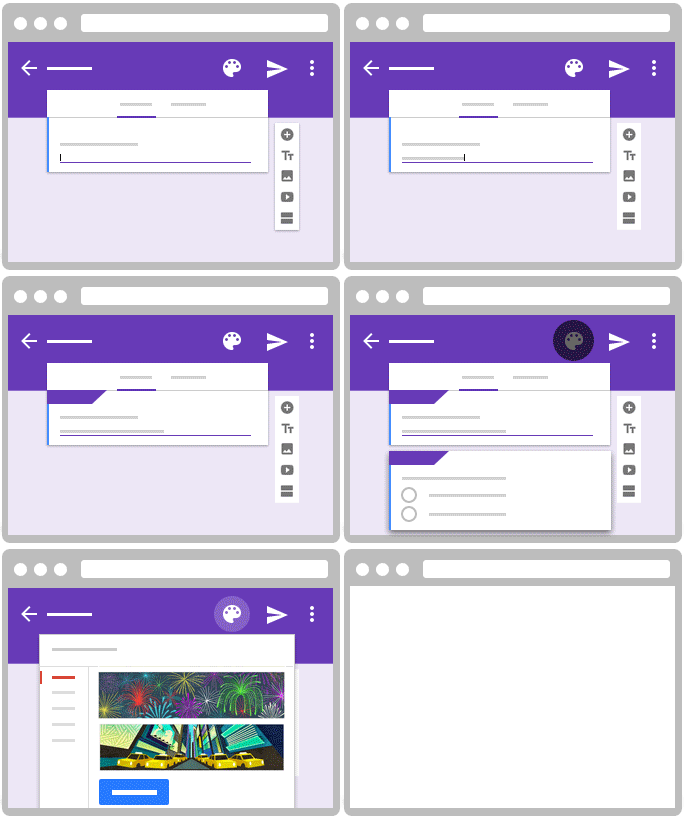
❌ Reproducible
❌ Data Control
⚠️ Free to Use
⚠️ Open Source
⚠️ Easy Collaboration
⚠️ Feature Packed
Introducing surveydown
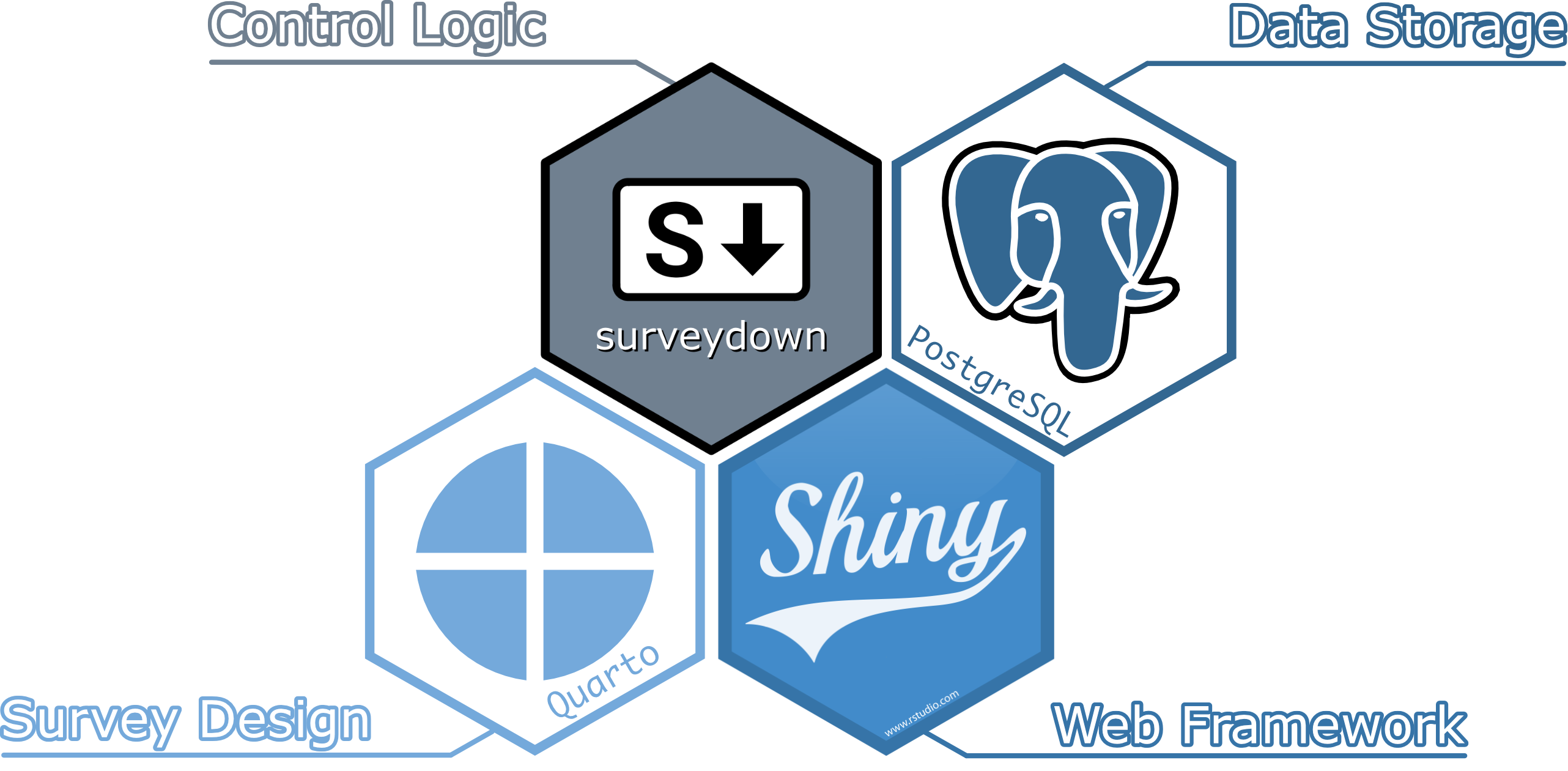
Components
survey.qmd
A Quarto doc defining the main survey content (pages, text, images, questions, etc).
app.R
An R script defining the survey Shiny app. It sets up the database and server, and launches the survey.
---
survey-settings:
  mode: preview
---

```{r}
library(surveydown)
```

--- welcome

# Welcome to our survey!

```{r}
sd_question(
  type  = "mc",
  id    = "penguins",
  label = "What's your favorite penguin?",
  option = c(
    "Adélie"    = "adelie",
    "Chinstrap" = "chinstrap",
    "Gentoo"    = "gentoo"
  )
)
```

--- end

This is the last page of the survey.

```{r}
sd_close()
```
survey.qmd
---
survey-settings:
  mode: preview
---

```{r}
library(surveydown)
```

--- welcome

# Welcome to our survey!

```{r}
sd_question(
  type  = "mc",
  id    = "penguins",
  label = "What's your favorite penguin?",
  option = c(
    "Adélie"    = "adelie",
    "Chinstrap" = "chinstrap",
    "Gentoo"    = "gentoo"
  )
)
```

--- end

This is the last page of the survey.

```{r}
sd_close()
```
YAML header (survey settings)
mode: preview saves responses to a local file while you build
Load surveydown package
---
survey-settings:
  mode: preview
---

```{r}
library(surveydown)
```

--- welcome

# Welcome to our survey!

```{r}
sd_question(
  type  = "mc",
  id    = "penguins",
  label = "What's your favorite penguin?",
  option = c(
    "Adélie"    = "adelie",
    "Chinstrap" = "chinstrap",
    "Gentoo"    = "gentoo"
  )
)
```

--- end

This is the last page of the survey.

```{r}
sd_close()
```---
survey-settings:
mode: preview
---
```{r}
library(surveydown)
```
--- welcome
# Welcome to our survey!
```{r}
sd_question(
type = "mc",
id = "penguins",
label = "What's your favorite penguin?",
option = c(
"Adélie" = "adelie",
"Chinstrap" = "chinstrap",
"Gentoo" = "gentoo"
)
)
```
--- end
This is the last page of the survey.
```{r}
sd_close()
```
Use markdown for page content
Use sd_question() in a code chunk for survey questions
A Next button is added to every page automatically
---
survey-settings:
  mode: preview
---

```{r}
library(surveydown)
```

--- welcome

# Welcome to our survey!

```{r}
sd_question(
  type  = "mc",
  id    = "penguins",
  label = "What's your favorite penguin?",
  option = c(
    "Adélie"    = "adelie",
    "Chinstrap" = "chinstrap",
    "Gentoo"    = "gentoo"
  )
)
```

--- end

This is the last page of the survey.

```{r}
sd_close()
```
Use sd_close() on the last page for an “Exit Survey” button
05:00
Your turn
Step 1: Open the demo-question-types folder in Positron
(File › Open Folder…)
Step 2: Open app.R and click the “Run App” arrow in the top-left (near where the “preview” button usually is for Quarto docs)
Step 3: Click through the survey, then look at survey.qmd to see how each question was made
Start a new survey from a template
In the R console, run:
Optional: Specify a path and / or a template:
Warning
Every surveydown survey should be in its own separate project folder.
Week 6: Intro to surveydown
1. What is surveydown?
2. Survey basics
3. Conditional logic
4. Storing & fetching data
5. Reactivity
YAML header
All survey settings go in the YAML header at the top of survey.qmd
No header at all? Everything uses the defaults.
Full list of settings on the Survey Settings docs page
Survey mode
Set under survey-settings in the YAML header:
mode |
Where responses are saved |
|---|---|
preview |
preview_data.csv in your survey folder |
local |
local_data.csv in your survey folder |
database (default) |
Your database (see part 4) |
Use preview while you build, switch to database before you launch
Change the survey theme
Pick a different bootswatch theme with the theme key:
Make a custom theme with a custom.scss file:
Progress bar
Modify the survey progress bar with the barcolor and barposition keys:
Inserting pages
Start each page with --- and a page id:
Next buttons are added automatically.
Add a Previous button to every page in the YAML:
Inserting questions
Insert questions using the sd_question() function, like this:
surveydown supports lots of question types
Some common types you may want to use:
| Type | Description |
|---|---|
mc |
Multiple choice question (single choice) |
mc_multiple |
Multiple choice question (multiple choices) |
mc_buttons |
Multiple choice question (large buttons) |
select |
Drop down menu (choose one) |
text |
Open text, single row |
textarea |
Open text, block |
numeric |
Numbers only |
matrix |
Several questions with the same options (e.g. agree / disagree) |
Or define questions in a questions.yml file
Embed images with html
I recommend just writing html code, like this

Embed images with markdown
Try out the surveydown studio app
sdstudio::launch()
10:00
Your turn
- Make a new survey with
surveydown::sd_create_survey()and open its folder in Positron. - Pick a topic for your survey (a food, an animal, a sports team…whatever).
- Draft a survey about that topic in
survey.qmd. Include the following:- Page 1: A welcome message in large font (“Welcome to a survey about [topic]”) and an image about the topic (find an image somewhere).
- Pages 2 to N: Add different questions about the topic using several different question types.
- Try out different themes to change the look and feel.
Week 6: Intro to surveydown
1. What is surveydown?
2. Survey basics
3. Conditional logic
4. Storing & fetching data
5. Reactivity
Three conditional logic functions
All go in the server() function in app.R:
| Function | What it does |
|---|---|
sd_show_if() |
Show a question or page if a condition is TRUE |
sd_skip_if() |
Skip forward to a page if a condition is TRUE |
sd_stop_if() |
Stop navigation (with a message) if a condition is TRUE |
Conditional Showing
Conditional question showing

Conditional question showing
Define both conditional and target questions in survey.qmd
# Conditional question
sd_question(
  type = "mc",
  id = "penguins",
  label = "Which is your favorite type of penguin?",
  option = c(
    "Adélie" = "adelie",
    "Chinstrap" = "chinstrap",
    "Gentoo" = "gentoo",
    "Other" = "other"
  )
)

# Target question
sd_question(
  type = "text",
  id = "penguins_other",
  label = "Please specify the other penguin type:"
)
Conditional question showing
Define condition with sd_show_if() in app.R
- Use
sd_value("id")to get the value of a question
Conditional Page Showing
Example: Randomly show one of two page versions

First, define all pages in your survey.qmd file:
In app.R:
sd_store_value() saves rand_val in your response data, so you know which version each respondent saw
Conditional Skipping
Example: Participant screen out
Example: Participant screen out
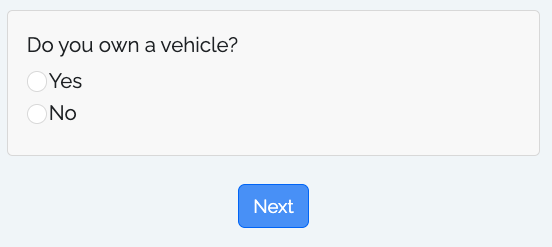
In survey.qmd: Target screenout question
In app.R:
For all three functions, there are lots of
conditions to choose from
See the demo-conditional-showing anddemo-conditional-skipping folders
15:00
Your turn
- Open the survey you were editing from your last practice.
- Add conditional logic content:
- Add one simple multiple choice question about your survey topic and another that will only show depending on a specific choice in the first question.
- Add a target page that respondents should be sent to based on their choices in another question in an earlier page (e.g., a multiple choice question).
Break
05:00
Week 6: Intro to surveydown
1. What is surveydown?
2. Survey basics
3. Conditional logic
4. Storing & fetching data
5. Reactivity
Data is stored in any PostgreSQL database

We use Supabase as a free, open-source option

Store data in Supabase
Steps to connect a database via Supabase:
- Create a Supabase account
- Create a Supabase project
- Copy your credentials
Full details on the Storing Data docs page
Creating a project
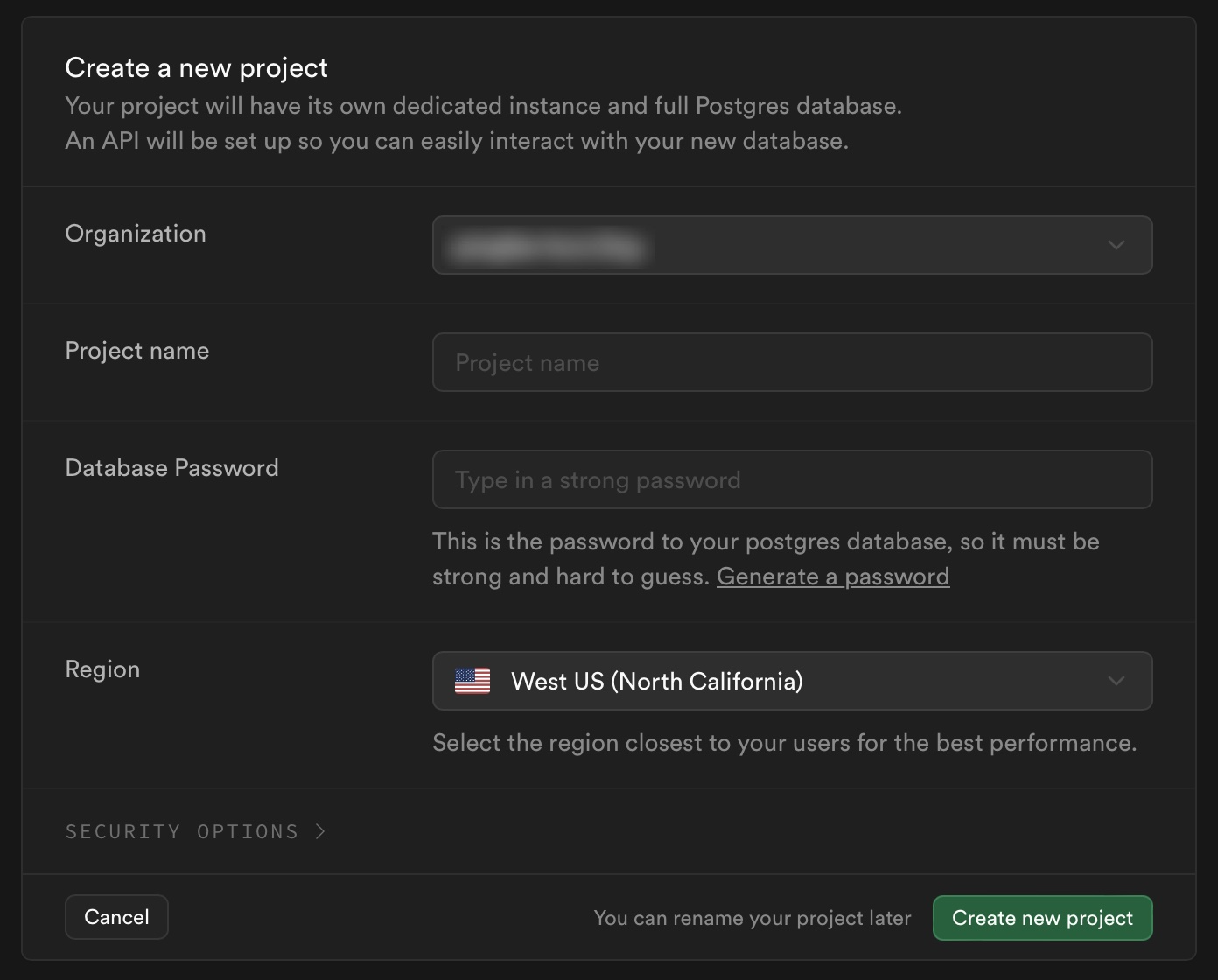
- Choose a project name (this is your “database”)
- Each database can have multiple tables
- Choose a strong password
Getting your Supabase credentials
Click the “connect” button in your project

Choose “Direct”, then find the “Transaction pooler” section
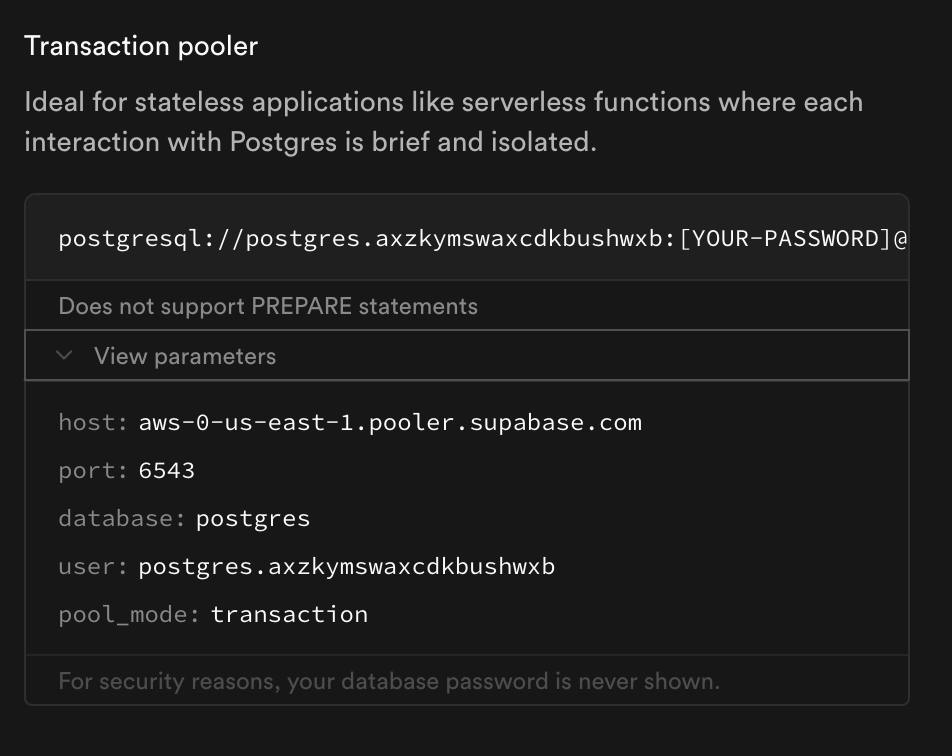
Store your database credentials

app.R
sd_db_connect() uses the .env file to make the database connection.
Then set mode: database in survey.qmd
(or delete the mode line — it’s the default)
Use sdstudio::launch() to locally view data
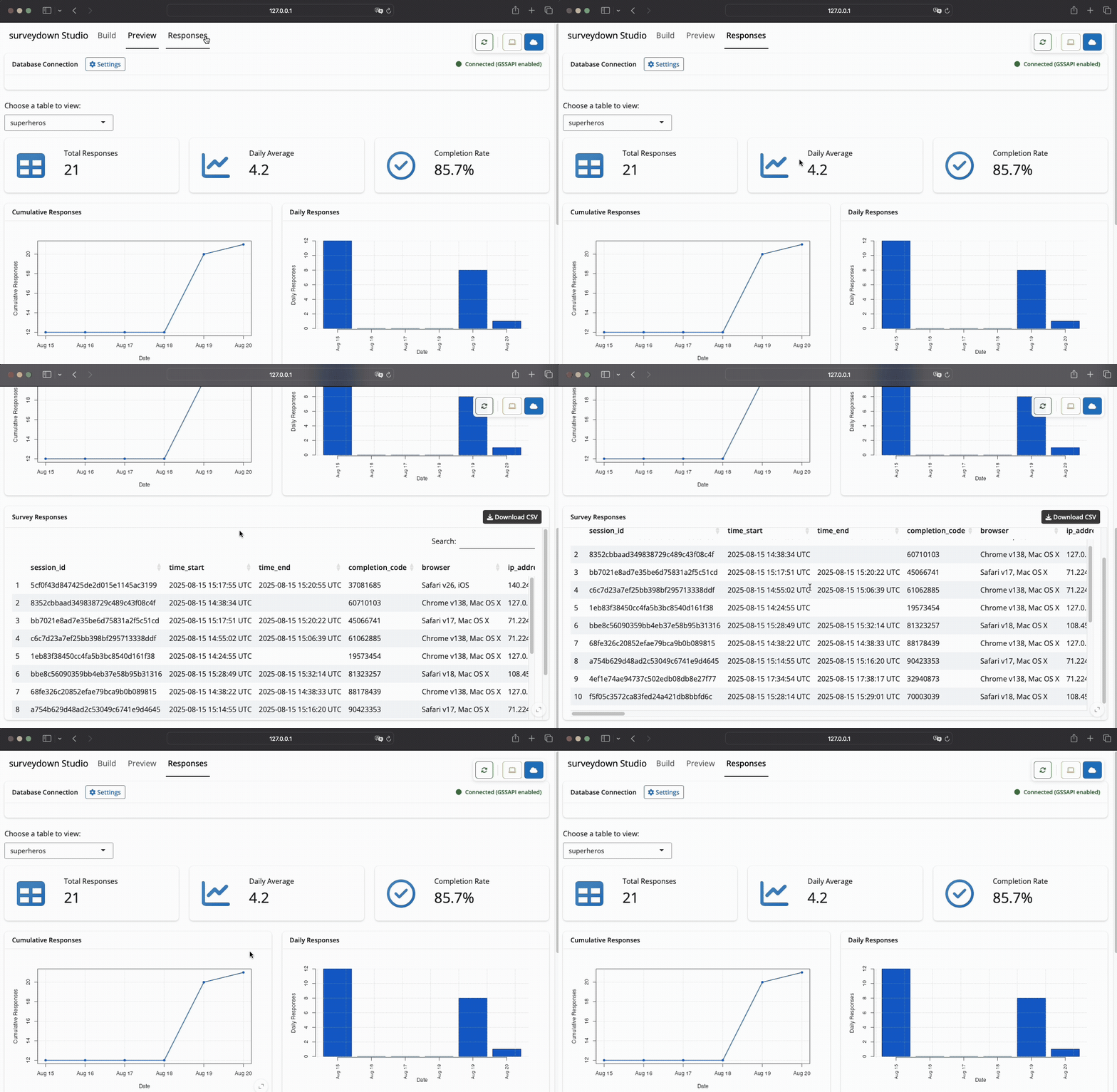
10:00
Your turn
- Create a Supabase account and database.
- Run
surveydown::sd_db_config()in your console to store your Supabase credentials. - Change
mode: previewtomode: databasein yoursurvey.qmd. - Run your survey locally, answer questions to generate data.
- View your response data with
sdstudio::launch()
Week 6: Intro to surveydown
1. What is surveydown?
2. Survey basics
3. Conditional logic
4. Storing & fetching data
5. Reactivity
Read the chapter in Mastering Shiny to
understand reactivity in general
Read the surveydown reactivity page
for reactivity in surveydown
Reactivity is about changing
something based on respondent input

Same example in surveydown
Simplified with sd_output() to display question values
Understanding sd_output()
Question in survey.qmd:
Understanding sd_output()
Question in survey.qmd:
07:00
Your turn
In your survey, display a question value somewhere with:
In your survey, display a question option label somewhere with:
Next team deliverable:
Pilot Survey (Due 10/13)
Pilot Survey (Due 10/13)